Provider Subscription Plans
Your provider subscription determines which features you can access on the platform. This article explains the subscription tiers, how to change your plan, and how to manage your billing.
Viewing Your Current Plan
- Log in to the Provider Portal and click Subscription in the left sidebar.
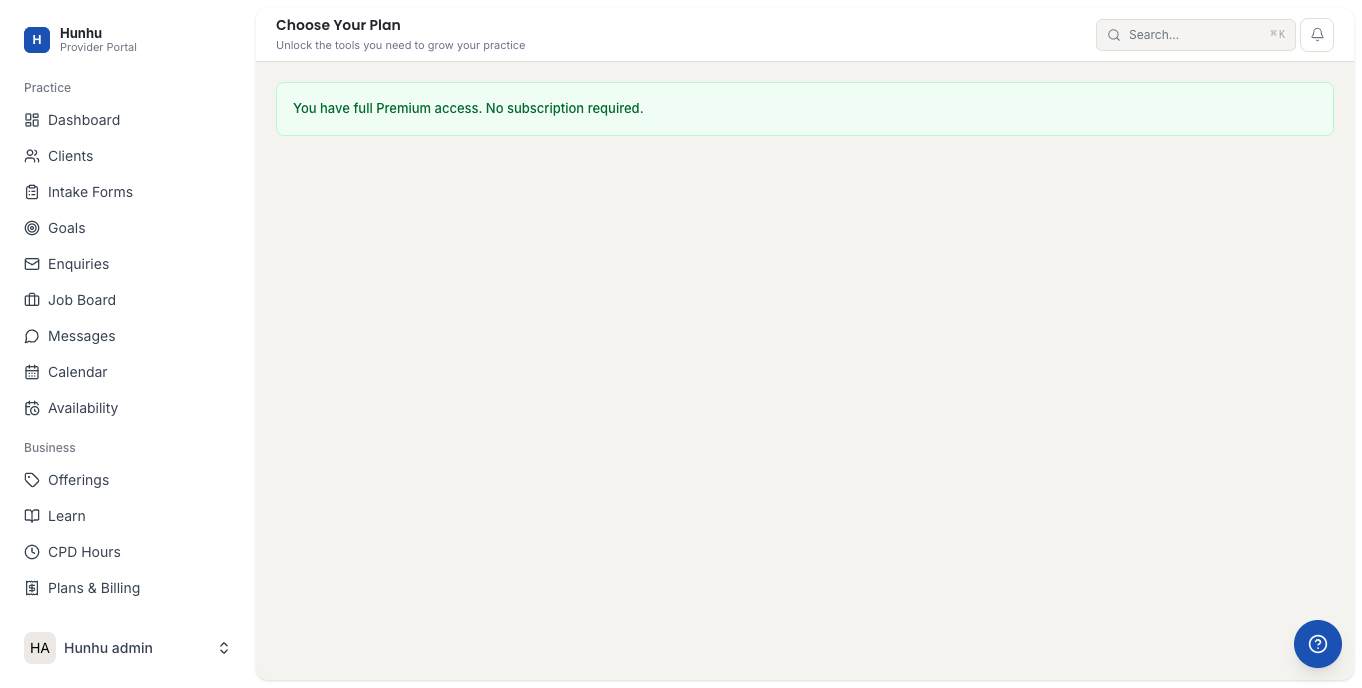
- Your current plan name, billing cycle, and renewal date appear at the top of the page.
- The included features are listed below your plan name.
Understanding Plan Tiers
Hunhu offers multiple provider subscription tiers. The exact tiers and pricing are set by the platform and may vary by agency. Typical tier differences include:
- Free / Starter — Basic profile listing, limited bookings per month, core messaging
- Professional — Unlimited bookings, custom availability, intake forms, CPD tracking, earnings exports
- Premium / Enterprise — All Professional features plus priority listing placement, advanced analytics, multiple offerings, and dedicated support
Check the subscription page for the exact features and pricing of each tier available to your agency's providers.
Upgrading Your Subscription
- On the Subscription page, click Upgrade or Change Plan.
- Review the available tiers and their features side by side.
- Click Select on the plan you want to move to.
- Review the pricing summary:
- If upgrading mid-cycle, you are charged a prorated amount for the remainder of your current billing period
- Your new billing amount takes effect at the start of the next billing cycle
- Enter or confirm your payment details.
- Click Confirm Upgrade. New features are available immediately.
Downgrading Your Subscription
- On the Subscription page, click Change Plan.
- Select the lower tier you want to move to.
- Click Confirm Downgrade.
- The downgrade takes effect at the end of your current billing period. You retain access to your current plan's features until then.
Important: Downgrading may disable features you currently use. For example, if you have multiple offerings set up on a Professional plan and downgrade to a Starter plan that only allows one offering, your additional offerings will be deactivated (not deleted).
Canceling Your Subscription
- On the Subscription page, scroll down to find the Cancel Subscription option.
- Click Cancel.
- You will be asked to confirm and optionally provide a cancellation reason.
- After cancellation:
- Your current plan remains active until the end of the paid billing period
- You will not be charged again after cancellation
- At the end of the billing period, your account reverts to a free/limited state
- Your data (clients, sessions, intake forms) is retained but access to premium features is removed
Managing Billing Details
- Click Billing in the left sidebar.
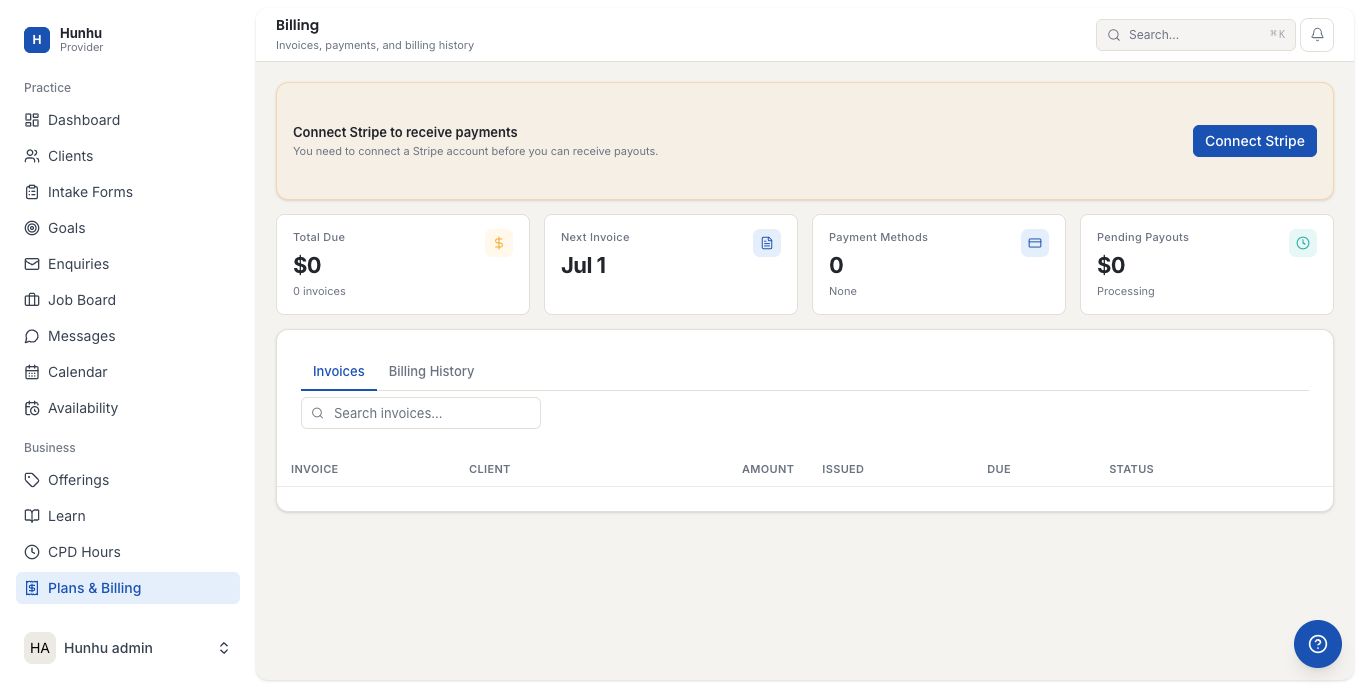
- Under Payment Method, click Update to change the credit card used for your subscription.
- Enter your new card details and click Save.
Downloading Invoices
- Click Billing in the sidebar, then click the Invoices tab.
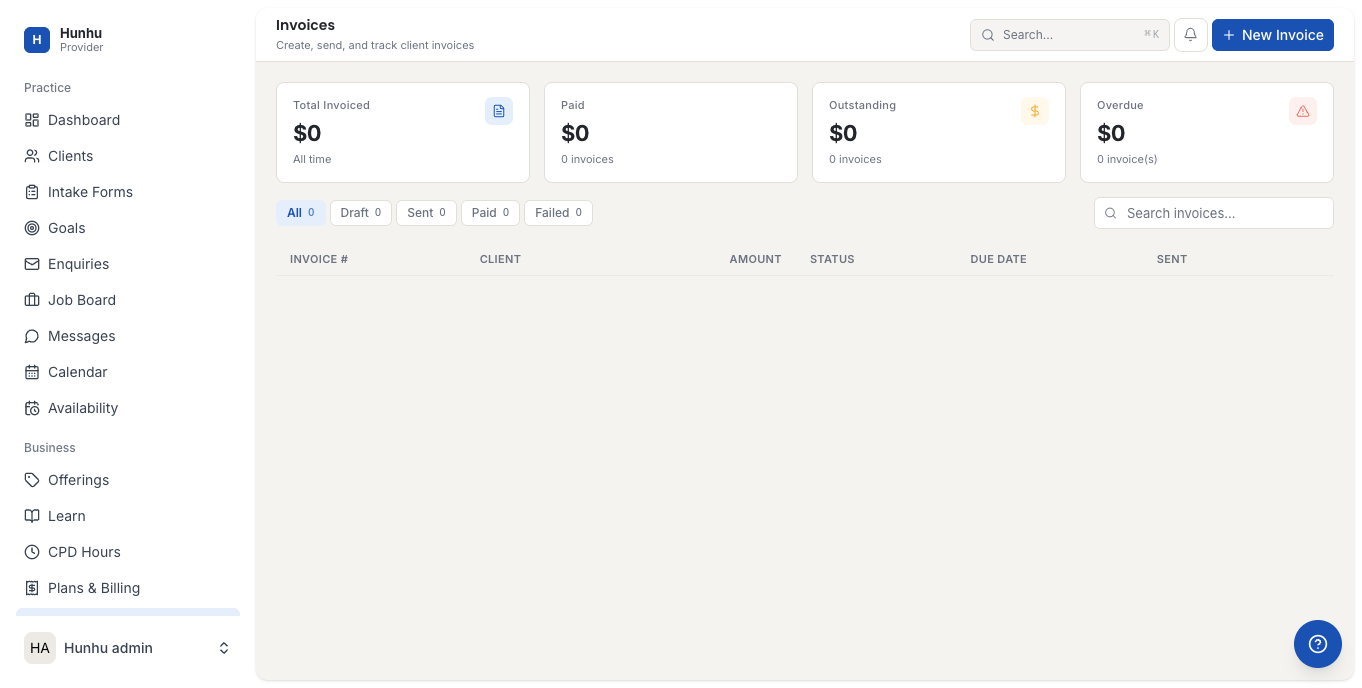
- Each billing cycle generates an invoice. Click Download PDF next to any invoice to download it for your records.
- Invoices show the subscription tier, billing period, amount charged, and the last four digits of the card charged.
Free Trial (If Applicable)
Some agencies offer new providers a free trial period on a higher tier. If your account is in a free trial:
- Your plan shows as Trial with the trial end date
- No card is charged until the trial ends
- At the trial end date, your plan either converts to a paid subscription (if you have added a payment method) or reverts to the free tier
- You can add a payment method at any time during the trial without being charged early
Still need help?
Our support team is here for you. Send us a message and we'll get back to you within 48 hours.