Provider Calendar
Your calendar in Hunhu controls when clients can book sessions with you. It shows all upcoming and past appointments, lets you block time off, and can sync with Google Calendar so your schedule stays consistent across tools.
Viewing Your Calendar
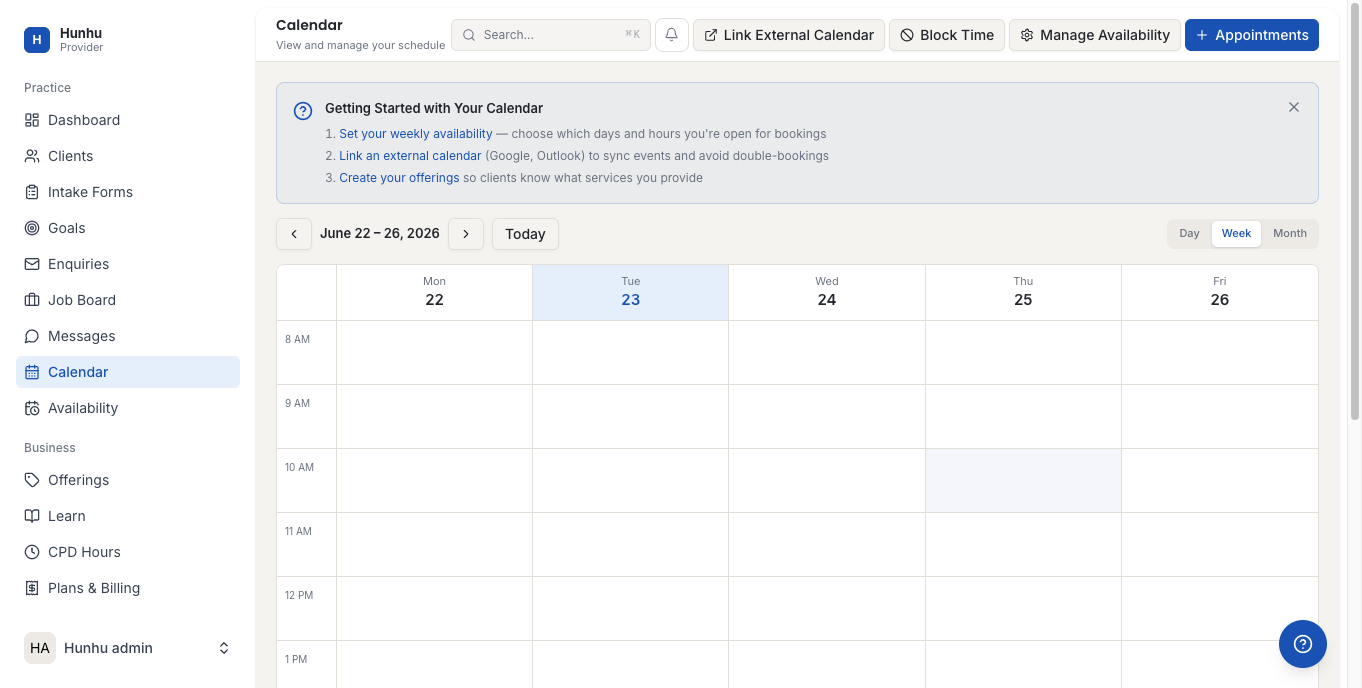
Go to Provider > Calendar to see your full schedule. The calendar displays appointments by day, week, or month. Each appointment block shows the client name, session type, and time.
Setting Your Availability
Before clients can book sessions, you need to set your recurring availability schedule. This tells the platform which days and times you are open for bookings.
- In the Calendar, click Availability or go to Settings > Availability.
- Select the days of the week you are available.
- For each active day, set your start and end time.
- Add additional time blocks if your schedule varies within a day.
- Save your availability. Your profile will now show bookable slots to clients based on these settings.
Blocking Off Time
If you need to close a specific day or time without changing your regular schedule, add a block:
- Click on the date or time slot you want to block in the calendar view.
- Select Block Time.
- Enter a label (optional, e.g. "Out of office") and set the duration.
- Save. That slot will not appear as bookable to clients.
Managing Appointments
Click any appointment on the calendar to see its details:
- Client name and contact — including a link to their consumer profile.
- Session type — which offering was booked.
- Date, time, and duration.
- Status — Upcoming, Completed, Cancelled.
- Notes — any session notes or prep information.
From the appointment detail view, you can:
- Mark as complete — after the session is done.
- Add notes — record what was covered or plan follow-up.
- Cancel the appointment — which notifies the client automatically.
- Reschedule — if the client has requested a different time.
Google Calendar Sync
You can connect Google Calendar to Hunhu so that appointments created on the platform automatically appear in your Google Calendar, and events in your Google Calendar block your availability on Hunhu.
- Go to Settings > Integrations.
- Click Connect Google Calendar.
- Sign in to the Google account you want to sync with.
- Authorize Hunhu to read and write calendar events.
- Choose which Google Calendar to sync to.
Once connected, new bookings appear in your Google Calendar automatically. If you add a personal event in Google Calendar, that time is blocked on Hunhu and cannot be booked by clients.
Group Session Scheduling
Group sessions appear on the calendar as a single block with a participant count. Click the group session to see who has booked a spot and how many seats remain. Once the session is at capacity, the booking link becomes unavailable to additional clients.
Session Reminders
The platform sends automatic email reminders to both you and the client before each session. The reminder timing is set by your agency. You do not need to send reminders manually.
Cancellation Policy
Cancellation and rescheduling policies are set at the agency level. Check with your agency administrator to understand the deadlines and any refund rules that apply to your bookings.
Still need help?
Our support team is here for you. Send us a message and we'll get back to you within 48 hours.