Managing Your Clients
The Clients section gives you a complete view of everyone you work with on the Hunhu platform. You can track client status, review engagement history, add new clients manually, and schedule appointments directly from the client list.
Accessing Your Client List
Go to Clients in the left navigation of your Provider portal.
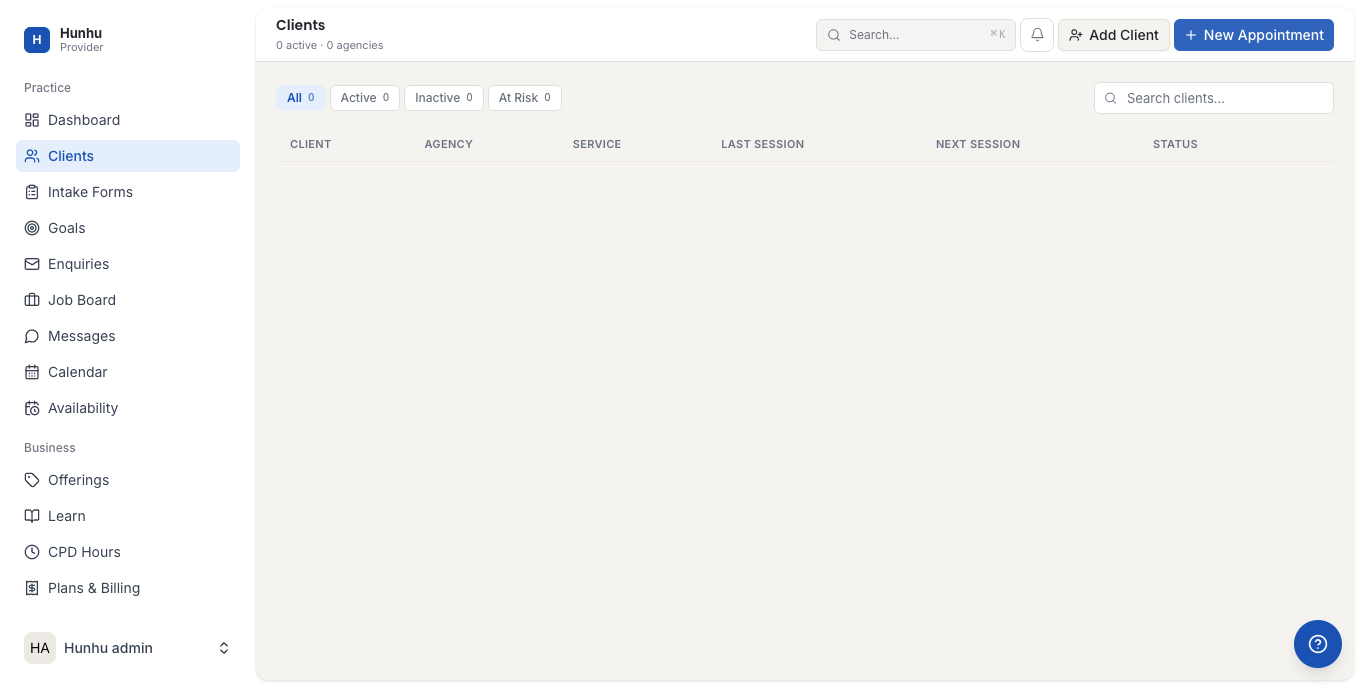
Client Status Tabs
Your client list is organized into four tabs:
- All — Every client in your roster, regardless of status.
- Active — Clients with recent or upcoming appointments and ongoing engagement.
- Inactive — Clients who have not had activity within your defined inactive threshold.
- At Risk — Clients flagged by the platform as at risk of disengagement (based on missed appointments or declining session frequency).
The At Risk tab is particularly useful for proactively reaching out to clients before they drop off entirely.
Adding a Client
To add a client manually:
- Click Add Client at the top right of the Clients page.
- Enter the client's name, contact information, and any intake notes.
- Save the record.
Clients can also be added automatically when they book an appointment with you through the Hunhu consumer portal or a referral link.
Scheduling an Appointment from the Client List
To book an appointment with an existing client:
- Find the client in the list.
- Click New Appointment next to their record, or open their profile and click New Appointment from there.
- Select the service type, date, and time.
- Confirm the booking.
Viewing Client History
Click on a client's name to open their full profile. From there you can see:
- All past and upcoming appointments.
- Session notes (if enabled by your agency).
- Contact information and intake details.
- Engagement history and any status changes.
Managing At-Risk Clients
The At Risk flag is a prompt to take action — not a permanent label. Once a client re-engages (books or attends an appointment), they will move back to Active status automatically. Use the At Risk tab as a weekly check-in habit to maintain retention across your roster.
Still need help?
Our support team is here for you. Send us a message and we'll get back to you within 48 hours.