Finding and Booking a Provider
As a consumer, you can browse the provider directory, view provider profiles, and book a session — all without leaving the platform. This article walks through the complete process from finding a provider to a confirmed booking.
Step 1 - Browse the Provider Directory
- Log in to the Consumer Portal.
- Click Find Providers or Search in the navigation.
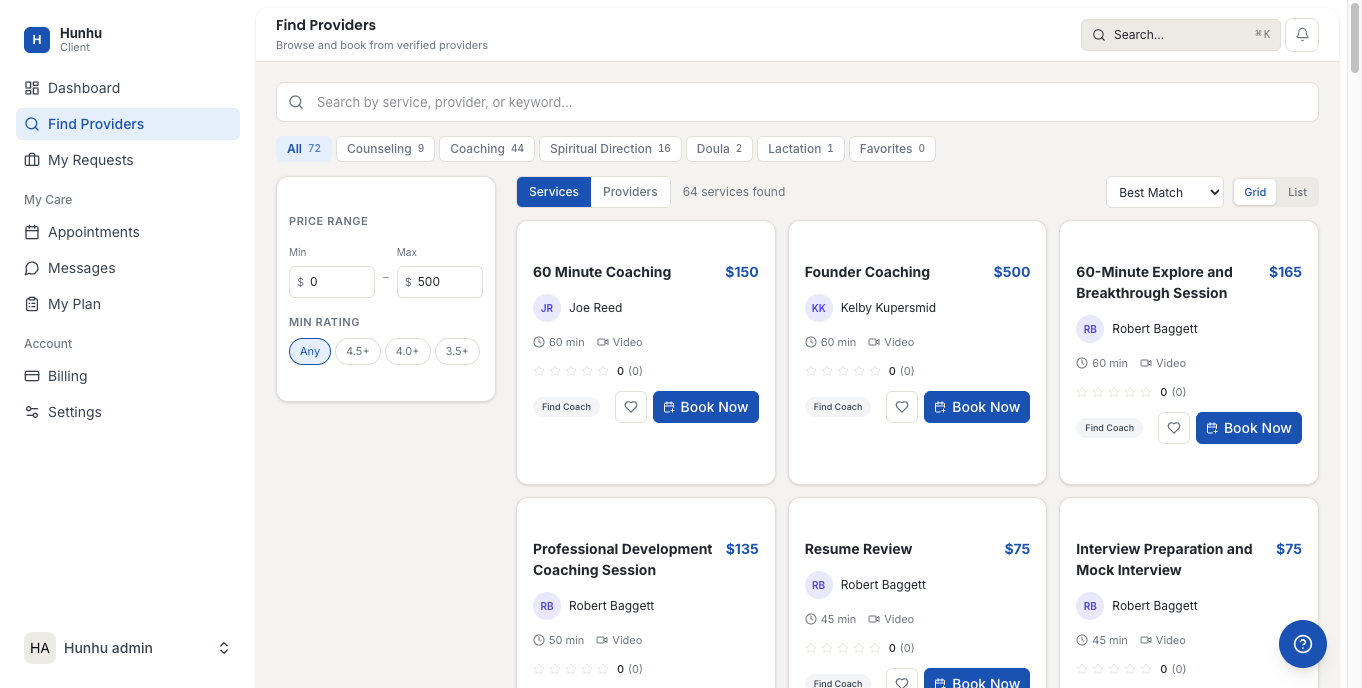
- The directory lists all active providers in your agency's network.
- Each provider card shows:
- Profile photo and name
- Specialty tags (e.g., Leadership, Career Coaching, Mindfulness)
- Session rate (if the provider has enabled this)
- Availability indicator (whether they are accepting new clients)
Step 2 - Search and Filter
- Use the Search bar to type a provider name, specialty, or keyword.
- Use the filter panel on the left (or a filter button on mobile) to narrow results:
- Specialty — select specific service categories
- Session type — Virtual only, In-Person only, or Both
- Availability — filter by days of the week or time of day you prefer
- Price — filter by session rate range
- Results update as you apply filters.
Step 3 - View a Provider Profile
- Click any provider card to open their full profile.
- The provider profile contains:
- Professional bio — their background, experience, and approach
- Credentials — certifications and professional licenses
- Specialties — their specific areas of expertise
- Offerings — session types available to book with pricing and duration
- Availability calendar — times open for booking
- Read the bio carefully to confirm this provider's approach matches what you are looking for.
Step 4 - Send an Enquiry (Optional)
If you want to ask a question before committing to a booking, you can send the provider an enquiry.
- On the provider's profile, click Send Enquiry.
- Write your question or note in the message box.
- Click Submit.
- The provider receives your enquiry and can reply through the platform's messaging system.
- You receive an email notification when the provider responds.
Step 5 - Book an Appointment
- On the provider's profile, click Book Now or click on a specific offering.
- Select the session type (e.g., 60-minute coaching session, Discovery Call).
- The booking calendar shows available times based on the provider's availability. Times already booked by other clients are shown as unavailable.
- Click on a date to see available time slots for that day.
- Click the time slot you want.
- Select your session format if both options are available: Virtual (video call) or In-Person.
- Review the booking summary:
- Provider name and session type
- Date and time
- Duration
- Total cost
- If this is your first session with this provider, you may be prompted to complete an intake form before confirming.
Step 6 - Complete Payment
- Enter your payment details (credit or debit card).
- If you have an active plan that includes session credits, the booking may be deducted from your plan at no additional charge.
- Review the total amount and click Confirm and Pay.
- Your booking is confirmed immediately.
Step 7 - Receive Confirmation
- You receive a booking confirmation email with:
- Provider name and contact
- Session date, time, and duration
- Zoom meeting link (for virtual sessions)
- Cancellation policy
- Option to add the appointment to your Google Calendar or iCal
- The appointment also appears in your Appointments tab in the consumer portal.
Rescheduling an Appointment
- Go to Appointments in the navigation.
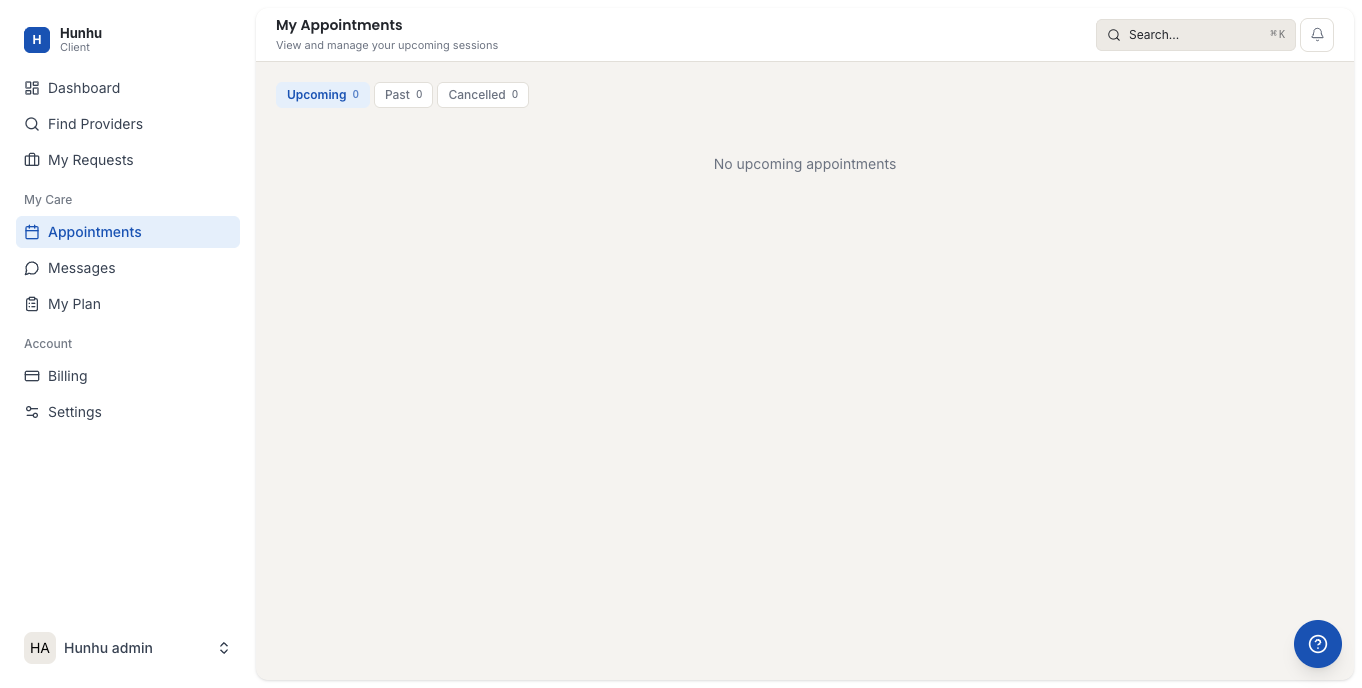
- Find the upcoming appointment and click Reschedule.
- Select a new date and time from the provider's available slots.
- Click Confirm Reschedule. Both you and the provider receive updated confirmation emails.
Note: Rescheduling may only be allowed up to a certain time before the appointment, depending on the provider's cancellation policy.
Canceling an Appointment
- Go to Appointments and find the appointment.
- Click Cancel.
- Read the cancellation policy before confirming. Late cancellations may incur a fee.
- Click Confirm Cancellation.
- If eligible for a refund based on the provider's policy, the refund is processed within 5-10 business days.
Was this helpful?
Still need help?
Our support team is here for you. Send us a message and we'll get back to you within 48 hours.