Team Roles
Team and Roles management lets you control who on your admin team can access the platform and what they can do. Assigning appropriate roles ensures that team members have the access they need without exposing sensitive settings or data to everyone.
Accessing Team Settings
Go to Admin > Team to see all members of your admin team and their assigned roles.
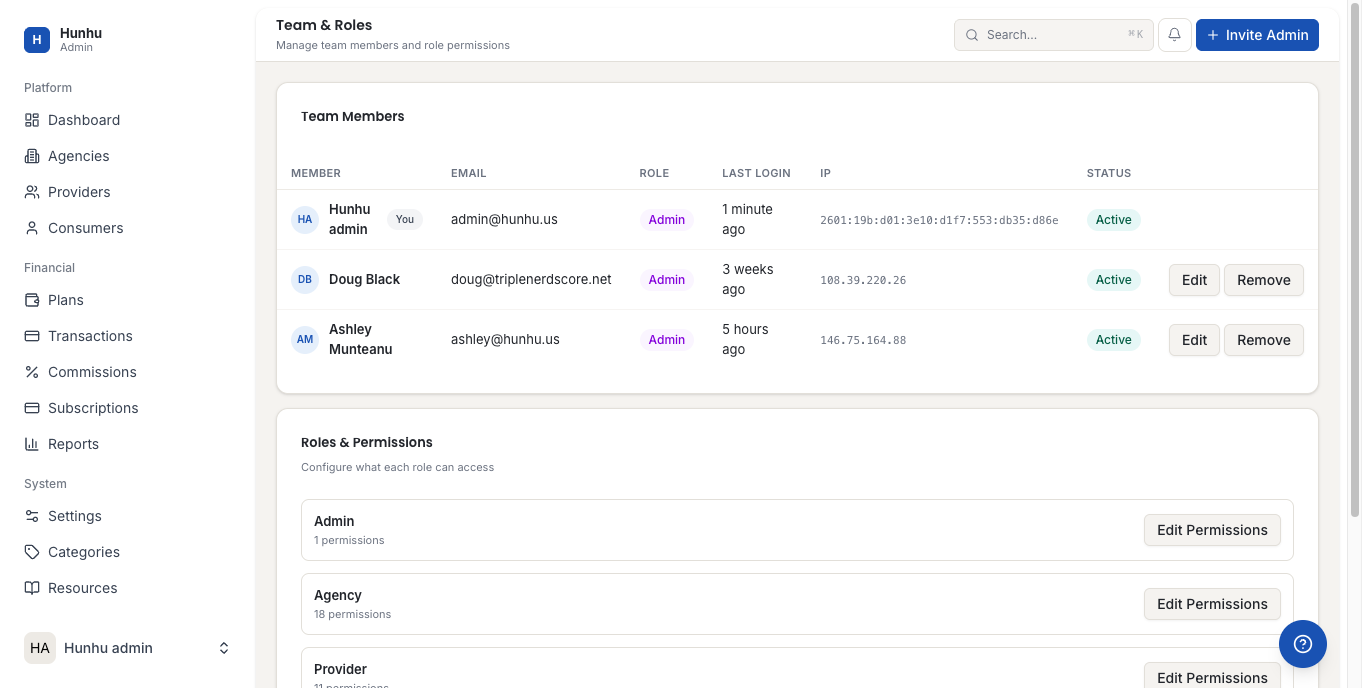
Inviting a Team Member
- Click Invite Team Member.
- Enter their email address.
- Select their role (see Role Types below).
- Send the invitation.
The invitee receives an email with a link to create their admin account. Once they set up their password, they appear as an active team member with the permissions you assigned.
Role Types
The platform supports the following admin roles:
- Super Admin — Full access to all platform settings, all agencies, billing, and team management. Typically limited to one or two people. Cannot be self-deleted.
- Platform Admin — Can manage agencies, providers, consumers, and reports. Cannot modify billing settings or team management.
- Support Agent — Can view all accounts and impersonate users for troubleshooting. Cannot make changes to settings, plans, or billing. Read-mostly access with impersonation rights.
- Finance — Access to transactions, reports, commission settings, and billing. No access to user accounts, settings, or impersonation.
- Viewer — Read-only access to reports and agency overviews. Cannot take any actions.
Changing a Team Member's Role
- Find the team member in the list.
- Click Edit on their record.
- Select the new role from the dropdown.
- Save.
The new permissions take effect immediately. The team member does not need to log out and back in.
Removing a Team Member
- Open the team member's record.
- Click Remove.
- Confirm the removal.
Removed team members immediately lose access to the admin portal. Their activity history in the Audit Logs is preserved.
Two-Factor Authentication
Admin accounts should use two-factor authentication (2FA). Enforce 2FA for all admin team members in Settings > Security. This is a best practice and may be required by your compliance framework.
Still need help?
Our support team is here for you. Send us a message and we'll get back to you within 48 hours.