Account Settings: Profile, Password, and Security
Account settings let you update your personal profile, change your password, and manage security options including two-factor authentication. These settings are available in every Hunhu portal — provider, agency, and consumer — under the same interface.
Accessing Account Settings
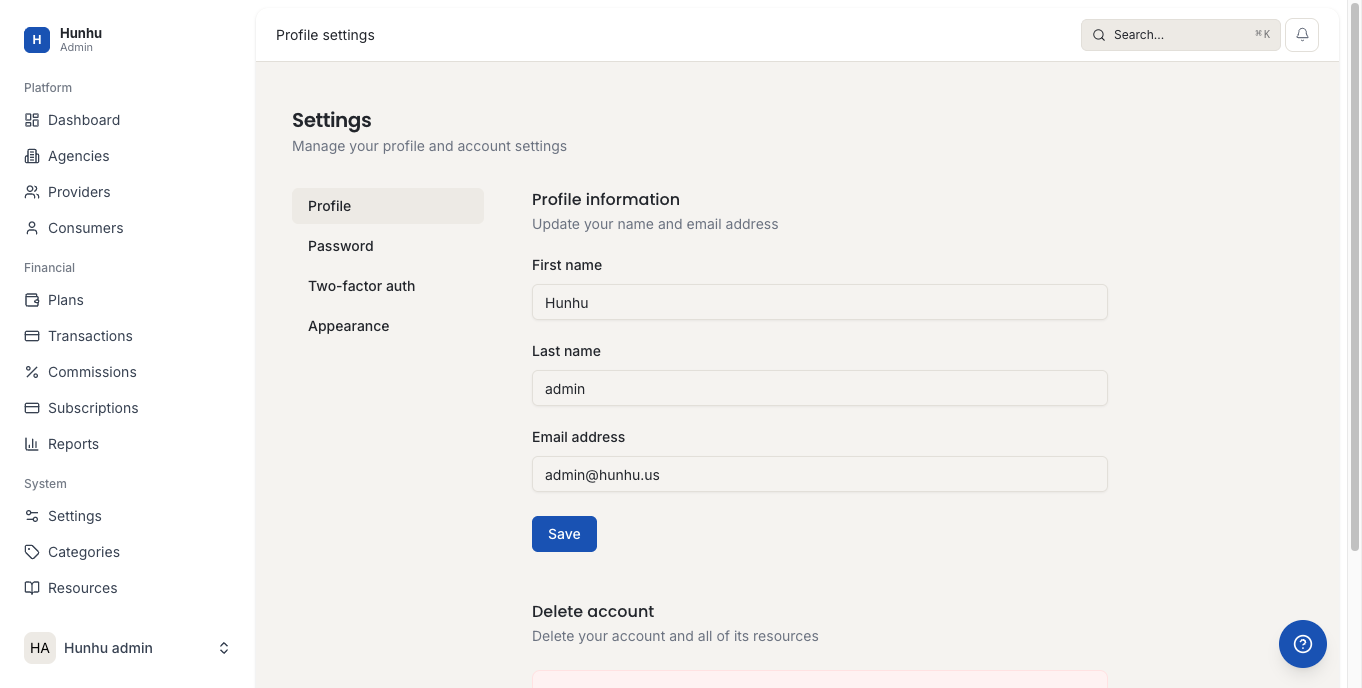
Click your profile avatar or name in the top right corner of any Hunhu portal, then select Settings (or navigate to Settings > Profile in the left navigation). The settings page has four tabs: Profile, Password, Two-Factor Auth, and Appearance.
Updating Your Profile
The Profile tab lets you update:
- Display name
- Email address
- Phone number
- Profile photo
- Any additional fields specific to your role (e.g., bio and credentials for providers)
Click Save Changes after editing.
Changing Your Password
Go to the Password tab to update your password.
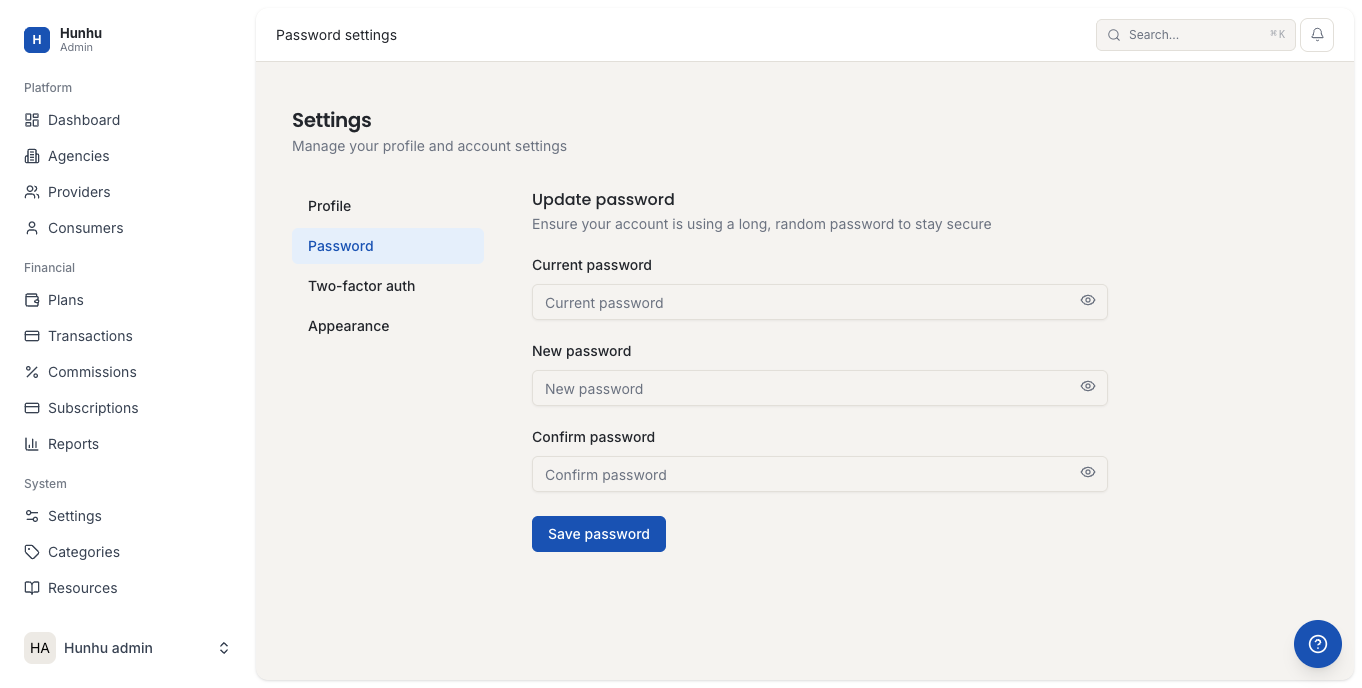
- Enter your current password.
- Enter and confirm your new password.
- Click Update Password.
Your new password takes effect immediately. You will remain logged in on the current device, but other active sessions may be signed out depending on your platform settings.
Resetting a Forgotten Password
If you cannot log in because you have forgotten your password:
- Go to the login page for your portal (e.g.,
admin.hunhu.us/provider/login). - Click Forgot Password below the login form.
- Enter your account email address and submit.
- Check your email for a password reset link. The link expires after 60 minutes.
- Click the link and enter a new password.
If you do not receive the reset email within a few minutes, check your spam folder. If the problem persists, contact your agency administrator or Hunhu support.
Two-Factor Authentication
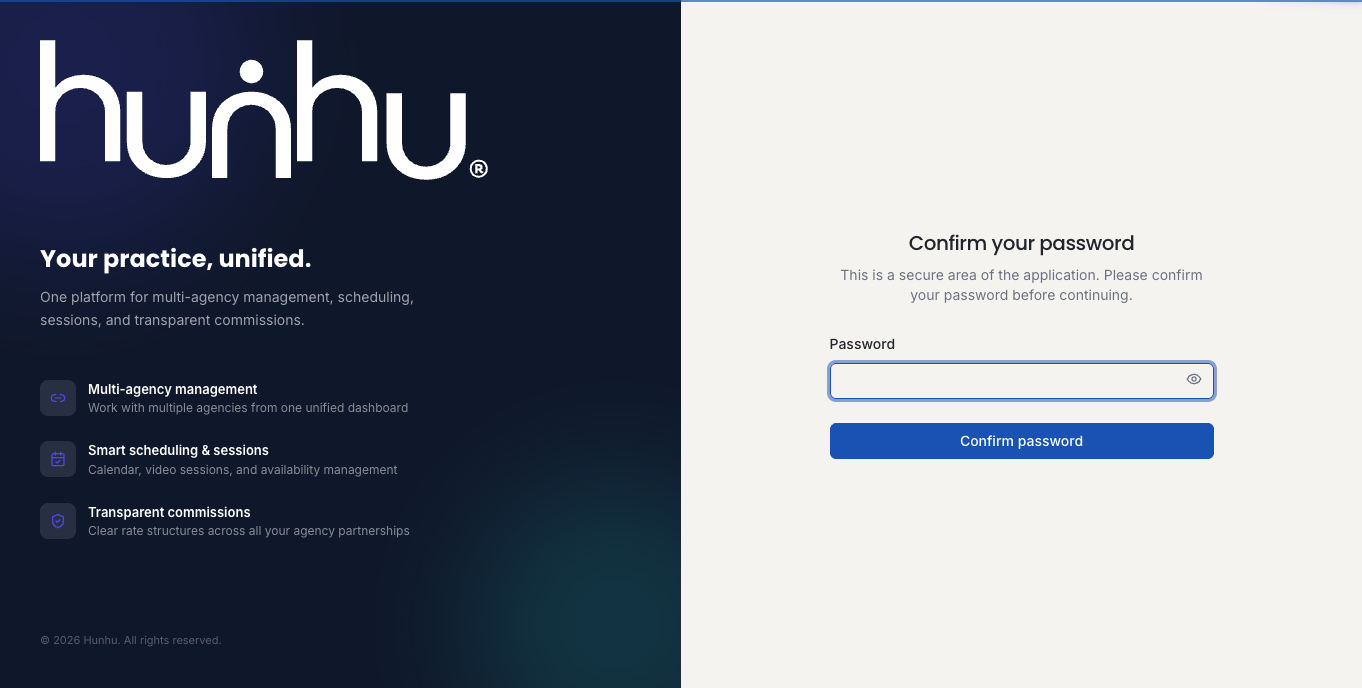
Two-factor authentication (2FA) adds a second verification step at login, requiring you to confirm your identity with a code from an authenticator app in addition to your password.
To enable 2FA:
- Go to the Two-Factor Auth tab.
- Click Enable Two-Factor Authentication.
- Scan the QR code with an authenticator app (such as Google Authenticator, Authy, or 1Password).
- Enter the six-digit code shown in the app to verify setup.
- Save your backup codes in a secure location — these allow you to recover access if you lose your device.
Once enabled, you will be asked for a 2FA code at every login. Admin users are strongly encouraged to enable 2FA, and agency administrators may require it for all users in their organization.
Appearance Settings
The Appearance tab lets you switch between light mode and dark mode for the portal interface. This preference is saved per-account and applies across all your sessions.
Still need help?
Our support team is here for you. Send us a message and we'll get back to you within 48 hours.