Custom Domain Setup
You can serve your Hunhu-powered directory under your own domain (e.g., directory.youragency.com) so clients see your brand everywhere. This article walks through the complete domain provisioning process.
Before You Start
You need:
- Access to your domain registrar or DNS provider (e.g., Cloudflare, GoDaddy, Namecheap)
- Permission to add/edit DNS records for your domain
- Your desired subdomain (e.g.,
directory.youragency.comorcoaches.youragency.com)
Step 1 - Open Domain Settings
- Log in to the Agency Portal and click Settings in the sidebar.
- Click the Domain tab.
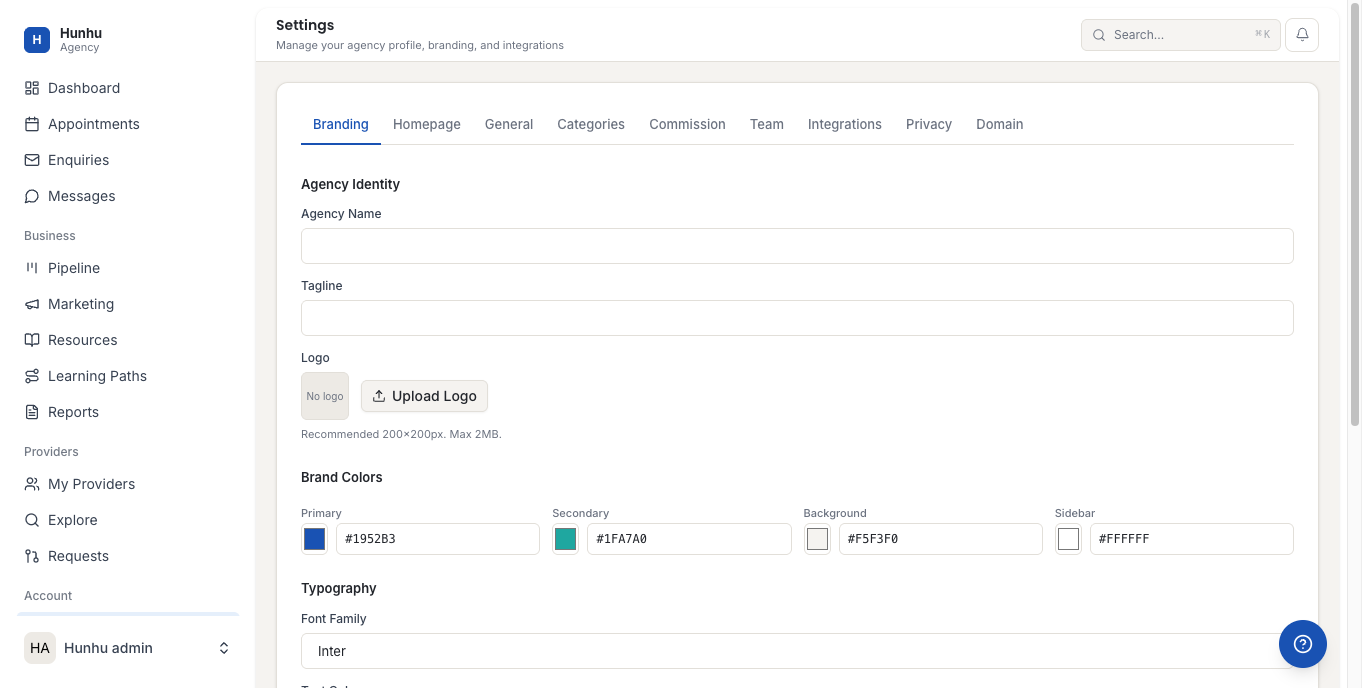
- You will see the 4-step provisioning indicator: DNS > Web Server > SSL > Live. Each step turns green as it is completed.
Step 2 - Enter Your Custom Domain
- In the Custom Domain field, type your desired domain. Use a subdomain format such as
directory.youragency.com. - Do not include
https://- just the domain and subdomain. - Click Save or Connect Domain.
- The platform generates the DNS records you need to add in the next step.
Step 3 - Add the DNS Record
- Log in to your DNS provider (e.g., Cloudflare, Namecheap, GoDaddy).
- Create an A record with the following:
- Name/Host: your subdomain (e.g.,
directoryif your full domain isdirectory.youragency.com) - Value/Points to: the IP address shown in the Hunhu domain settings
- TTL: Auto or 300 seconds
- Name/Host: your subdomain (e.g.,
- Save the DNS record in your provider's dashboard.
Note: DNS propagation typically takes 15 minutes to 2 hours, though it can take up to 24 hours in some cases.
Step 4 - Monitor Provisioning Status
- Return to the Domain tab in your Agency Settings.
- Watch the 4-step indicator:
- DNS - Turns green when the A record is detected
- Web Server - Turns green when the Hunhu server confirms routing
- SSL - Turns green when the SSL certificate is issued (can take 5-15 minutes after DNS)
- Live - Turns green when your domain is fully active
- Once all four steps are green, your domain shows Domain Connected status and a Disconnect button appears.
Step 5 - Configure WWW Redirect (Optional)
- Under WWW Redirect, choose how to handle www vs. non-www traffic:
- No redirect - www and non-www both work independently
- Redirect from www -
www.directory.youragency.comredirects todirectory.youragency.com - Redirect to www -
directory.youragency.comredirects towww.directory.youragency.com
- Select your preference and click Save.
Disconnecting a Domain
- On the Domain settings tab, click Disconnect.
- Confirm the action. Your directory reverts to the default Hunhu URL.
- Remember to remove or update the DNS A record at your DNS provider to avoid a dangling record.
Troubleshooting
DNS step not turning green after 2 hours: Double-check that the A record value exactly matches what the Hunhu platform specified, with no typos or extra spaces.
SSL step stuck: Ensure there are no CAA records on your domain that would block certificate issuance. If your domain uses Cloudflare proxy (orange cloud), try switching it to DNS-only (grey cloud) during provisioning.
Site loads but shows a certificate error: Wait 15-30 minutes more for the SSL certificate to fully propagate. If the error persists after 1 hour, contact support.
Still need help?
Our support team is here for you. Send us a message and we'll get back to you within 48 hours.