Creating and Managing Offerings
Offerings are the services, packages, and add-ons you sell through Hunhu. Before clients can book or enquire, you need at least one active offering published to your profile. This article covers how to create and manage all three offering types.
Offering Types Overview
Offerings are organized into three tabs on the Offerings page (Provider > Offerings):
- Services — Single-session appointments. Can be individual (1:1) or group sessions.
- Packages — Bundles of multiple sessions sold together at a set price.
- Add-ons — Optional extras that clients can attach to a booking (e.g. a workbook, extended time, follow-up call).
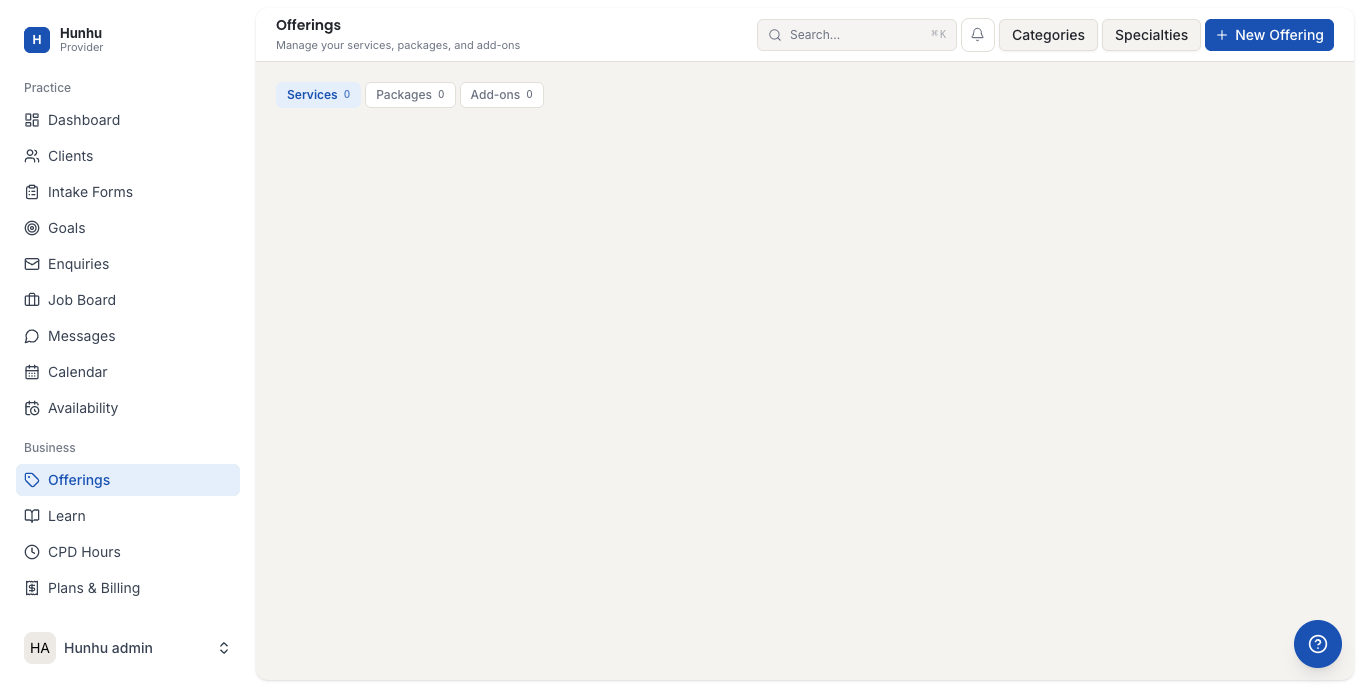
Creating a Service (Individual 1:1)
- Go to Provider > Offerings.
- Click New Offering in the top right.
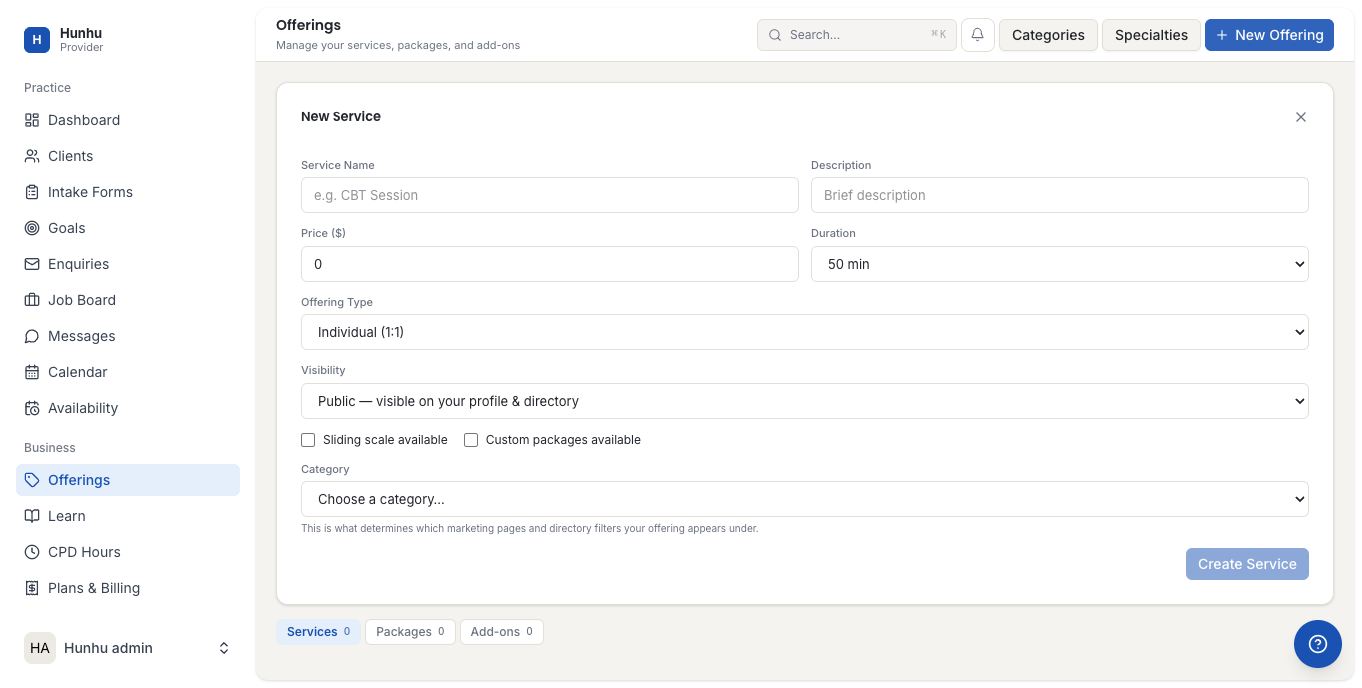
- Fill in the service form:
- Service Name — A clear, client-facing name (e.g. "Initial Coaching Session").
- Description — A brief description of what the session covers.
- Price ($) — The rate for this service.
- Duration — Choose from 30, 45, 50, 60, 75, 90, or 120 minutes.
- Offering Type — Select Individual (1:1).
- Visibility — Public (visible on your profile and directory) or Private (accessible only via direct link).
- Sliding scale available — Check this if you offer reduced rates for clients with financial need.
- Custom packages available — Check this if you allow clients to negotiate custom session bundles.
- Category — Select the category and subcategory that best matches this service. This determines which directory filters and marketing pages your offering appears under.
- Click Create Service.
Creating a Group Session
Group sessions allow multiple clients to book and attend the same appointment slot. They work like services but have a participant cap and shared scheduling.
- Click New Offering.
- Fill in the service name, description, price, and duration.
- Set Offering Type to Group Session.
- Set the maximum number of participants for the group.
- Choose visibility and category as you would for a 1:1 service.
- Click Create Service.
Group sessions appear on your provider profile and in the directory. When a client books a group session, they see how many spots remain. Once the session reaches capacity, no further bookings are accepted.
Creating a Package
Packages bundle multiple sessions into a single purchase. Clients pay upfront for the bundle and then book individual sessions against that package over time.
- On the Offerings page, click the Packages tab.
- Click New Offering.
- Enter:
- Package Name — e.g. "6-Session Coaching Programme".
- Description — What's included and the expected outcome.
- Number of Sessions — How many sessions the package covers.
- Price ($) — The total package price.
- Session Duration — Duration of each included session.
- Validity Period — How long the client has to use their sessions.
- Category and Visibility — same as services.
- Click Create Package.
Creating an Add-on
Add-ons are optional extras that clients can attach to any booking. Use them for things like extended session time, a written summary, a workbook, or a follow-up check-in.
- On the Offerings page, click the Add-ons tab.
- Click New Offering.
- Enter the add-on name, description, and price.
- Click Create Add-on.
Add-ons appear as optional selections during the booking flow. Clients can add them to any compatible booking before confirming.
Managing Categories and Specialties
Use the Categories and Specialties buttons at the top of the Offerings page to manage how your work is classified in the directory. Setting these accurately improves your visibility in search results and filters.
Editing or Deactivating an Offering
- To edit an offering, click on it in the list and update the fields.
- To make an offering private without deleting it, change its Visibility to Private.
- To remove an offering entirely, open it and select Delete. Existing bookings tied to that offering are not affected.
Visibility and the Directory
Public offerings appear on your provider profile page within the agency's directory. Clients browsing the directory can see your services, session lengths, and prices before booking or enquiring. Private offerings are only accessible via a direct link you share with specific clients.
Still need help?
Our support team is here for you. Send us a message and we'll get back to you within 48 hours.