Announcements
The Announcements section lets you send platform-wide notifications to agencies, providers, and consumers. Use it to communicate maintenance windows, new features, policy changes, or other important information to all users without having to contact each agency separately.
Accessing Announcements
Go to Admin > Announcements to see your current and past announcements, and to create new ones.
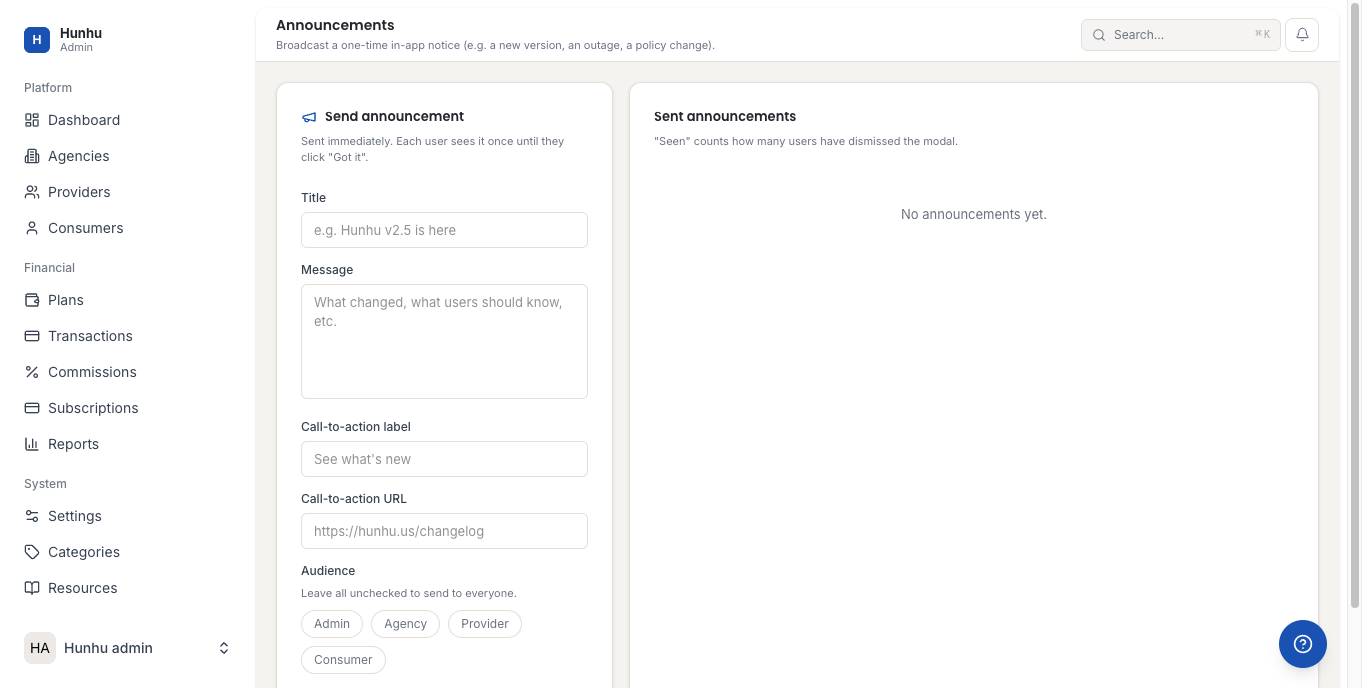
Creating an Announcement
- Click New Announcement.
- Fill in the announcement details:
- Title — A short, descriptive subject line.
- Body — The full announcement text. You can use formatting (bold, links, lists) in the rich text editor.
- Audience — Choose who receives the announcement: All Users, Agencies Only, Providers Only, Consumers Only, or specific agencies.
- Delivery Method — In-app banner, email, or both.
- Publish Date — Publish immediately or schedule for a future date and time.
- Expiry Date — When the announcement should stop displaying (for in-app banners). Leave blank to keep it live indefinitely.
- Priority — Normal (shown in notification feed) or High (shown as a prominent banner at the top of the portal).
- Preview the announcement.
- Click Publish or Schedule.
Best Uses for Announcements
- Maintenance windows — Notify users at least 48 hours before planned downtime. Include the date, expected duration, and what will be affected.
- New features — Brief announcements with a link to the relevant help article.
- Policy changes — Terms of service or commission policy updates, with the effective date clearly stated.
- Platform-wide issues — If there is an active incident affecting all users, use a High priority in-app banner so users know immediately and do not submit duplicate support requests.
Managing Active Announcements
Active announcements show in the list with their current audience and expiry date. To edit or remove an active announcement:
- Open the announcement record.
- Edit the content or change the expiry date, or click Unpublish to remove it immediately.
Announcement History
Past announcements are archived automatically once they expire. You can access the full announcement history from the Announcements page by switching to the Archived tab. This is useful for auditing what users were notified about and when.
Still need help?
Our support team is here for you. Send us a message and we'll get back to you within 48 hours.