Google Calendar Setup
Connecting Google Calendar to your provider account gives you two-way sync between your Hunhu schedule and Google Calendar. New Hunhu appointments appear in Google Calendar automatically, and existing Google Calendar events block your Hunhu availability so clients cannot double-book you.
Before You Connect
You need:
- A Google account with the calendar you want to sync
- Permission to authorize third-party apps for your Google account (if you use Google Workspace, your admin may need to allow this)
Step 1 - Open Integrations Settings
- Log in to the Provider Portal.
- Click Settings in the left sidebar.
- Click the Integrations tab.
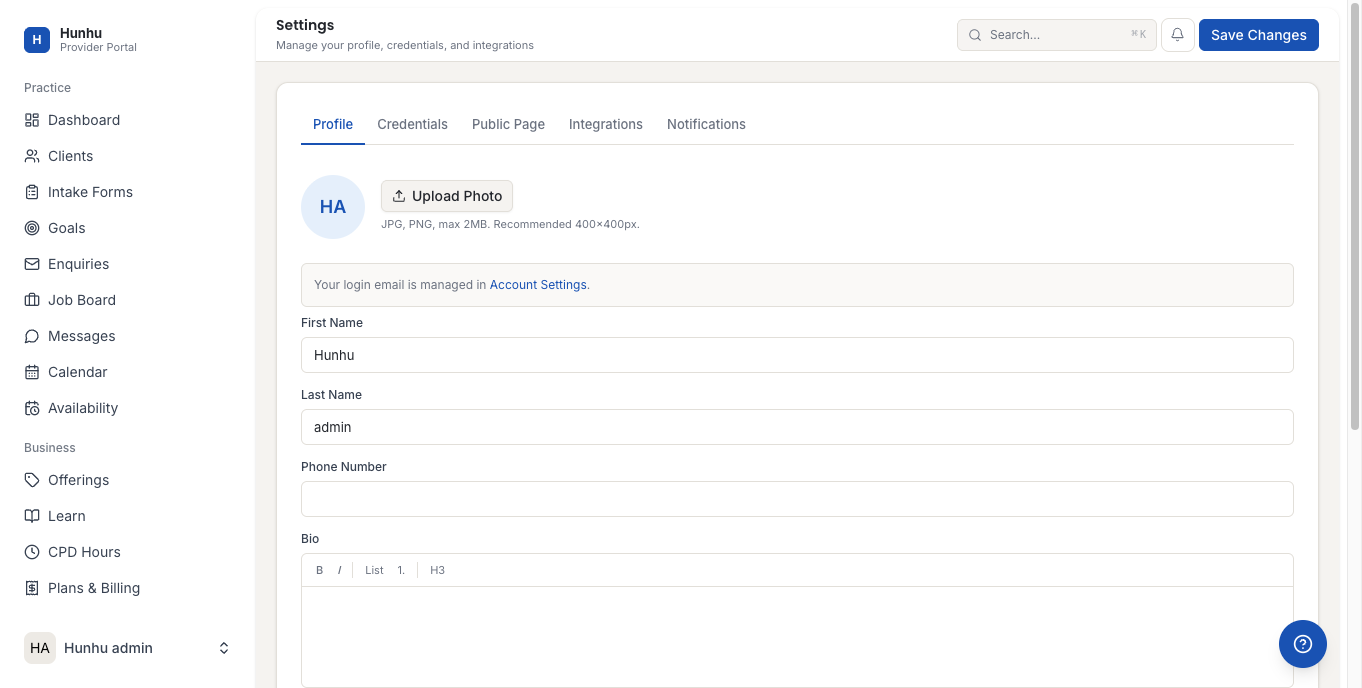
- You will see the Google Calendar integration with a Connect button.
Step 2 - Authorize Google Calendar
- Click Connect Google Calendar.
- A Google authorization window opens in a new popup.
- Select the Google account you want to connect. Make sure this is the account that contains the calendar you use for scheduling.
- Review the permissions Hunhu is requesting. The platform needs:
- Read access to see your existing calendar events (so it can block busy times)
- Write access to create new calendar events (so Hunhu bookings appear in Google Calendar)
- Click Allow to grant the permissions.
- The popup closes and you are returned to the Hunhu Integrations tab. The Google Calendar section now shows Connected along with your Google account email.
Step 3 - Select Which Calendar to Sync
- After connecting, a dropdown appears letting you select which calendar to use from your Google account.
- If you have multiple calendars (personal, work, team calendars), select the one that represents your true availability.
- Click Save to confirm the calendar selection.
How the Sync Works
Once connected:
- Hunhu → Google Calendar: When a client books an appointment through Hunhu, a Google Calendar event is created automatically with the client's name, session type, and Zoom link (if applicable).
- Google Calendar → Hunhu: Any events on your selected Google Calendar are treated as busy blocks. Clients cannot book during those times, even if your Hunhu weekly schedule shows those hours as available.
Example: If you have a personal doctor's appointment Tuesday at 2 PM in Google Calendar, no client can book a Hunhu appointment at 2 PM on that Tuesday — even if 2 PM is normally in your available hours.
Testing the Connection
- After saving, navigate to your Calendar page in the Provider Portal.
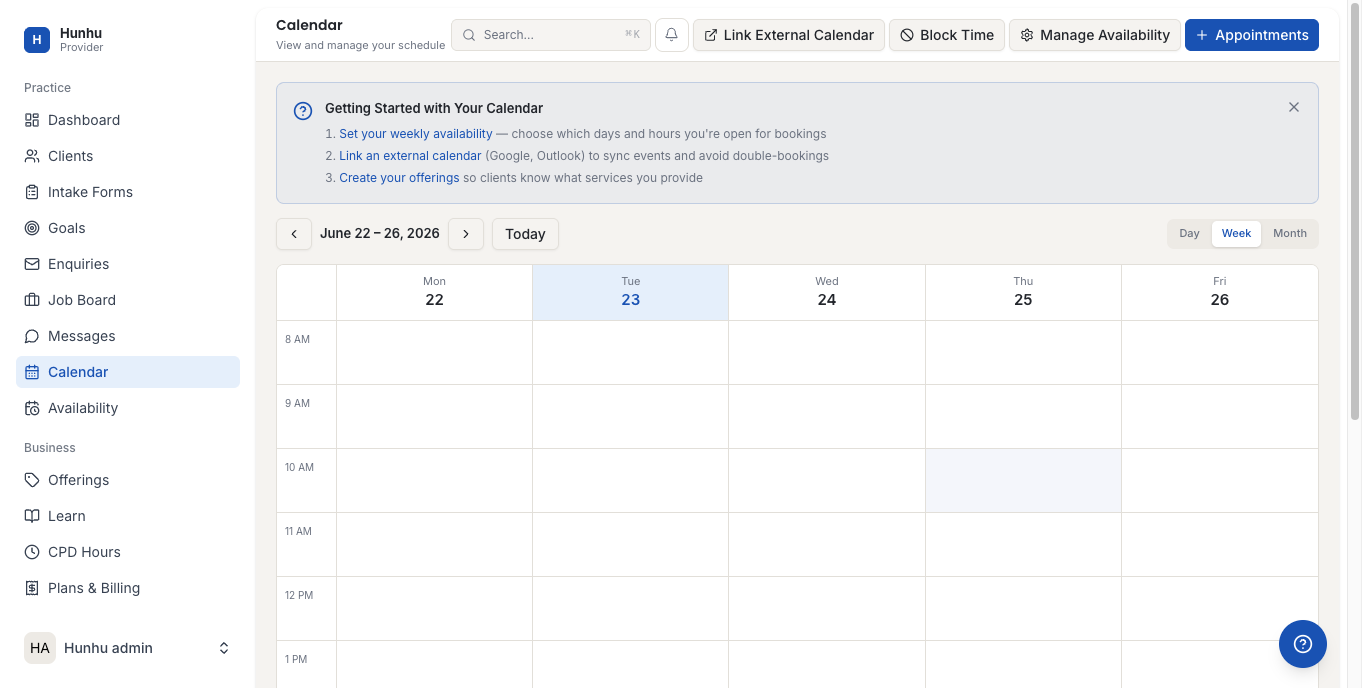
- Confirm that your existing Google Calendar events appear as blocked time.
- Create a test booking and verify it appears in your Google Calendar.
Disconnecting Google Calendar
- Go to Settings > Integrations.
- Click Disconnect next to your Google Calendar connection.
- Confirm the disconnection.
- After disconnecting:
- Future Hunhu bookings will no longer be added to Google Calendar
- Google Calendar events will no longer block your Hunhu availability
- Past calendar events that were created by the sync are not deleted from Google Calendar
Troubleshooting
Google Calendar events not blocking Hunhu availability: Check that you selected the correct calendar in the dropdown after connecting. If you have multiple Google Calendars, the sync only reads the one you selected.
Hunhu bookings not appearing in Google Calendar: The sync may have a short delay (up to 5 minutes). If they don't appear after 10 minutes, disconnect and reconnect the integration.
Permissions error during connection: If you use Google Workspace (G Suite), your organization's admin may have restricted third-party app access. Ask your Google Workspace admin to allow calendar access for external apps, or use a personal Google account instead.
Wrong Google account connected: Disconnect the current integration, then reconnect and make sure to select the correct Google account in the authorization popup.
Still need help?
Our support team is here for you. Send us a message and we'll get back to you within 48 hours.