Admin Impersonation Guide
Admins can log into any agency, provider, or consumer account to troubleshoot issues, test configurations, or assist users. This is called "impersonation" and is available directly from the Admin portal. All impersonation sessions are logged in the Audit Log.
How Impersonation Works
When an admin impersonates another account:
- You see the portal exactly as that user sees it, with their data and permissions
- A "Return to Admin" banner appears at the top of the screen in all impersonated sessions
- The impersonated user is NOT notified that an admin has logged in as them
- All impersonation sessions are recorded in the Audit Log with timestamp, admin account, and the account impersonated
Logging In as an Agency
- In the Admin portal, click Agencies in the left sidebar.
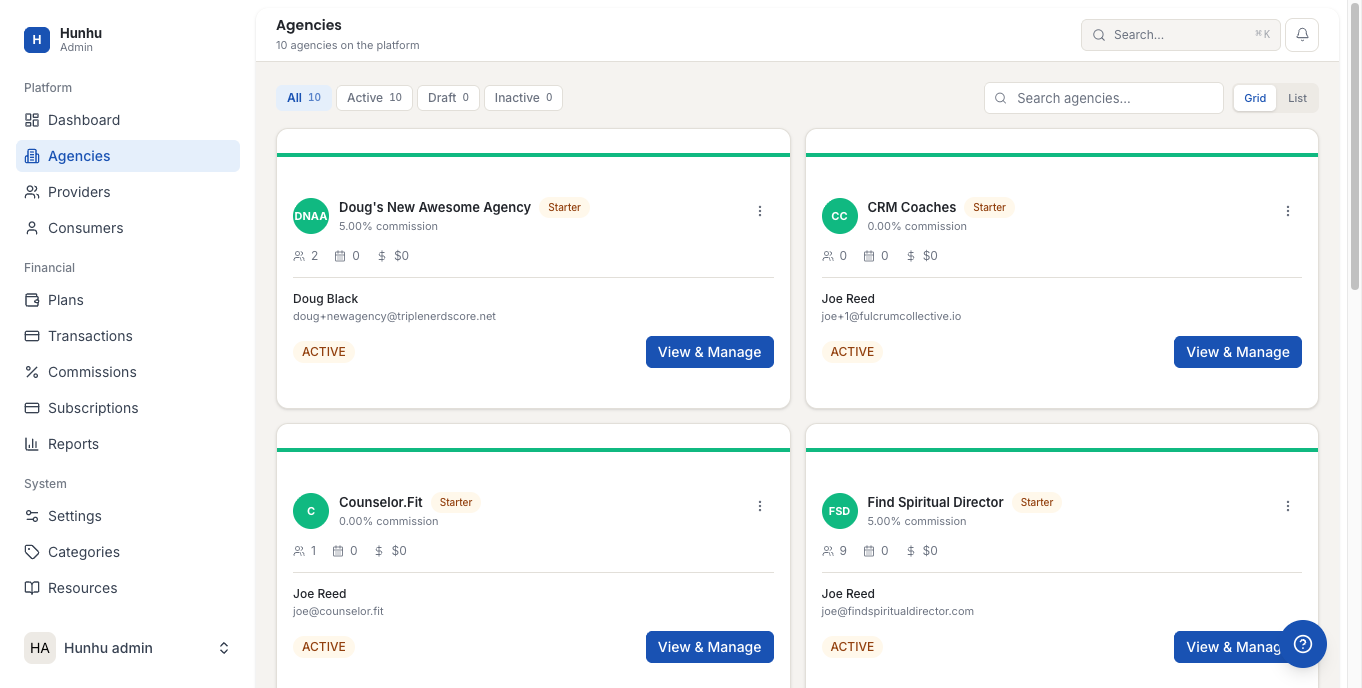
- Click on the agency you want to view.
- On the agency detail page, click Login as Agency.
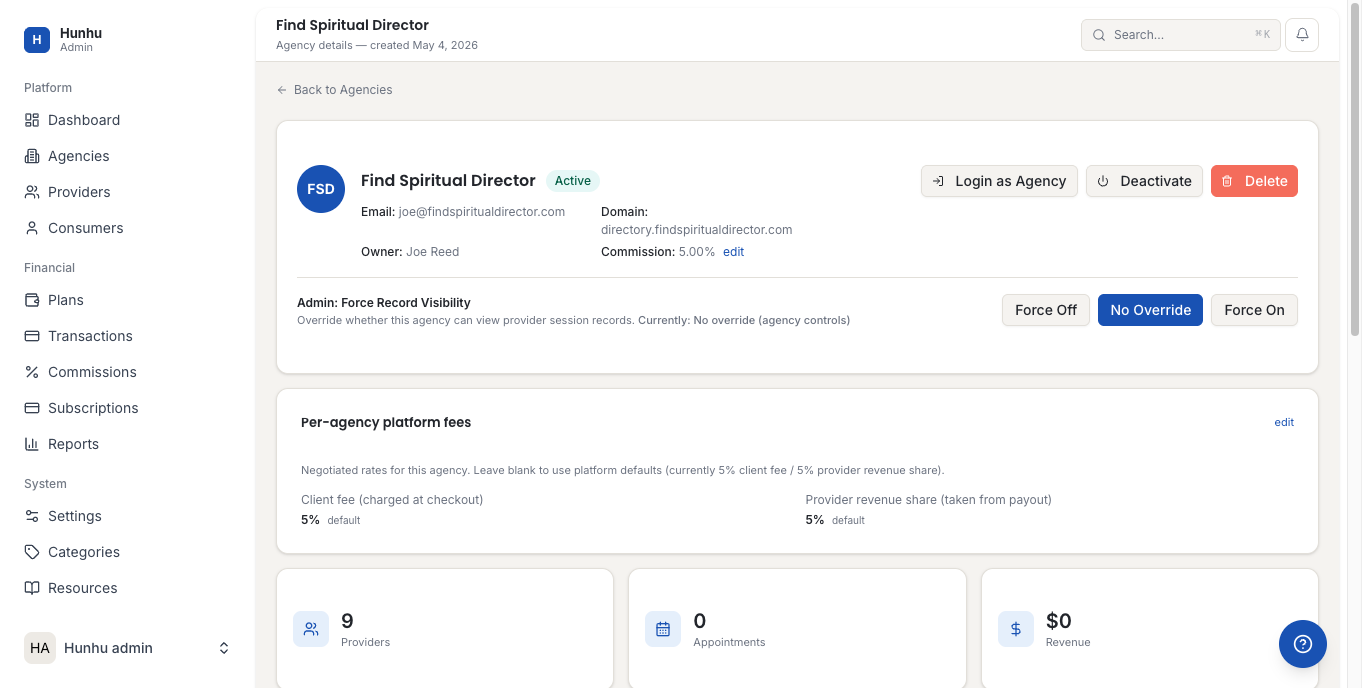
- The Agency Portal opens in a new view. You are now logged in as that agency's administrator account.
- The "Return to Admin" banner appears at the top of the screen. Click it at any time to exit the impersonation session and return to your Admin view.
Logging In as a Provider
- In the Admin portal, click Providers in the left sidebar.
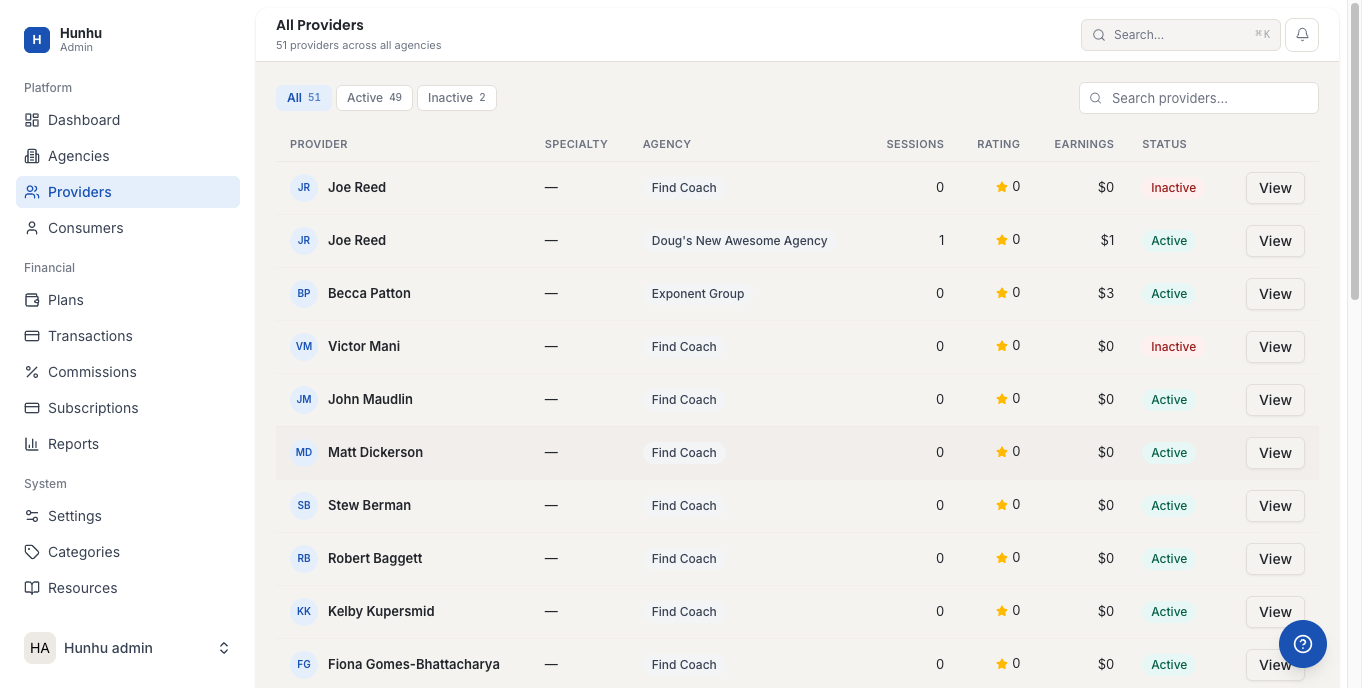
- Find the provider you want to view. Use the search bar to locate them by name or email.
- Click the provider's name to open their detail page.
- On the provider detail page, click Login as Provider.
- The Provider Portal opens showing that provider's complete view: their clients, calendar, earnings, settings, and all other sections.
- Click the "Return to Admin" banner to exit.
Logging In as a Consumer
- In the Admin portal, click Consumers in the left sidebar.
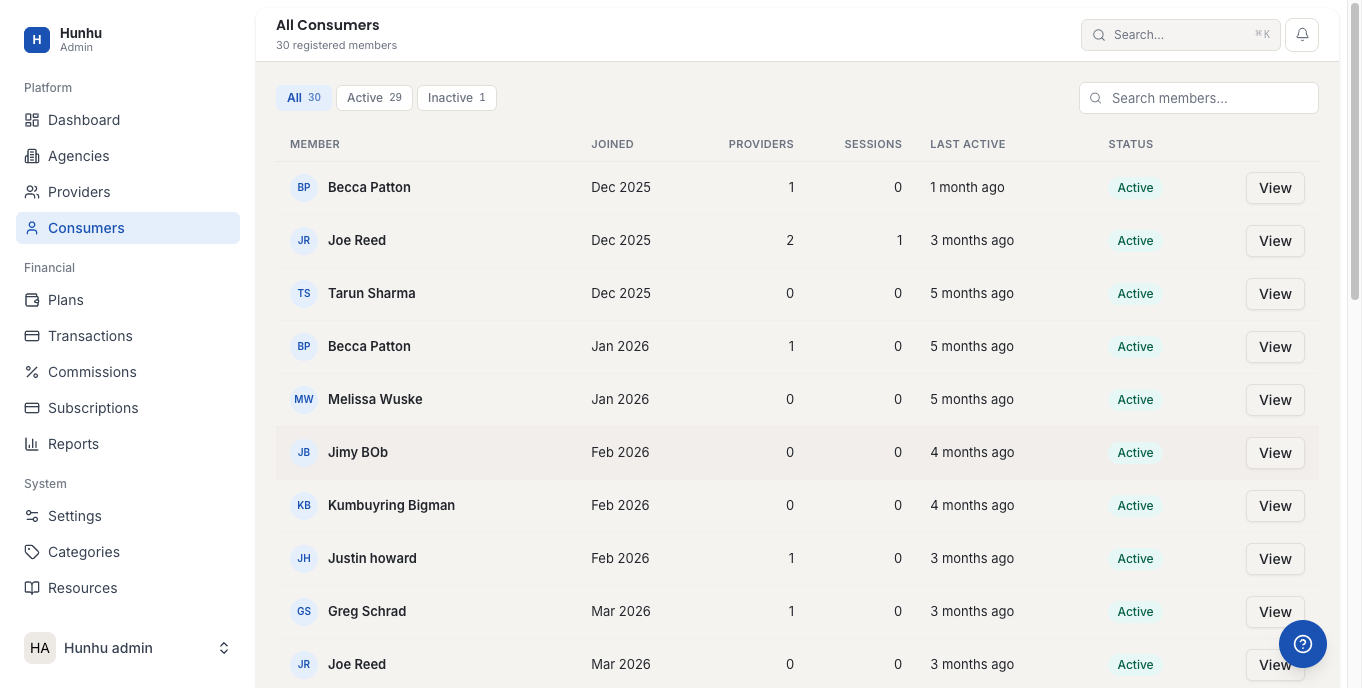
- Find the consumer you want to view. Use the search bar or browse the list.
- Click the consumer's name to open their detail page.
- On the consumer detail page, click Login as Consumer.
- The Consumer Portal opens showing that consumer's complete experience: their dashboard, appointments, messages, billing, and profile.
- Click the "Return to Admin" banner to exit.
Returning to Admin After Impersonation
- At any point during an impersonation session, look for the colored banner at the very top of the screen that says "You are logged in as [name]. Return to Admin."
- Click Return to Admin in that banner.
- You are returned to the Admin portal exactly where you left off.
Common Uses for Impersonation
- Support troubleshooting: When a user reports that something is not working, log in as them to reproduce the issue in context.
- Onboarding verification: Log in as a new provider to confirm their profile is displaying correctly and their settings are configured.
- Feature testing: Test a new integration or feature from the end-user perspective after configuring it as admin.
- Booking testing: Log in as a consumer on your own agency to test the complete booking flow end-to-end.
Reviewing Impersonation in the Audit Log
- In the Admin portal, click Audit Logs in the sidebar.
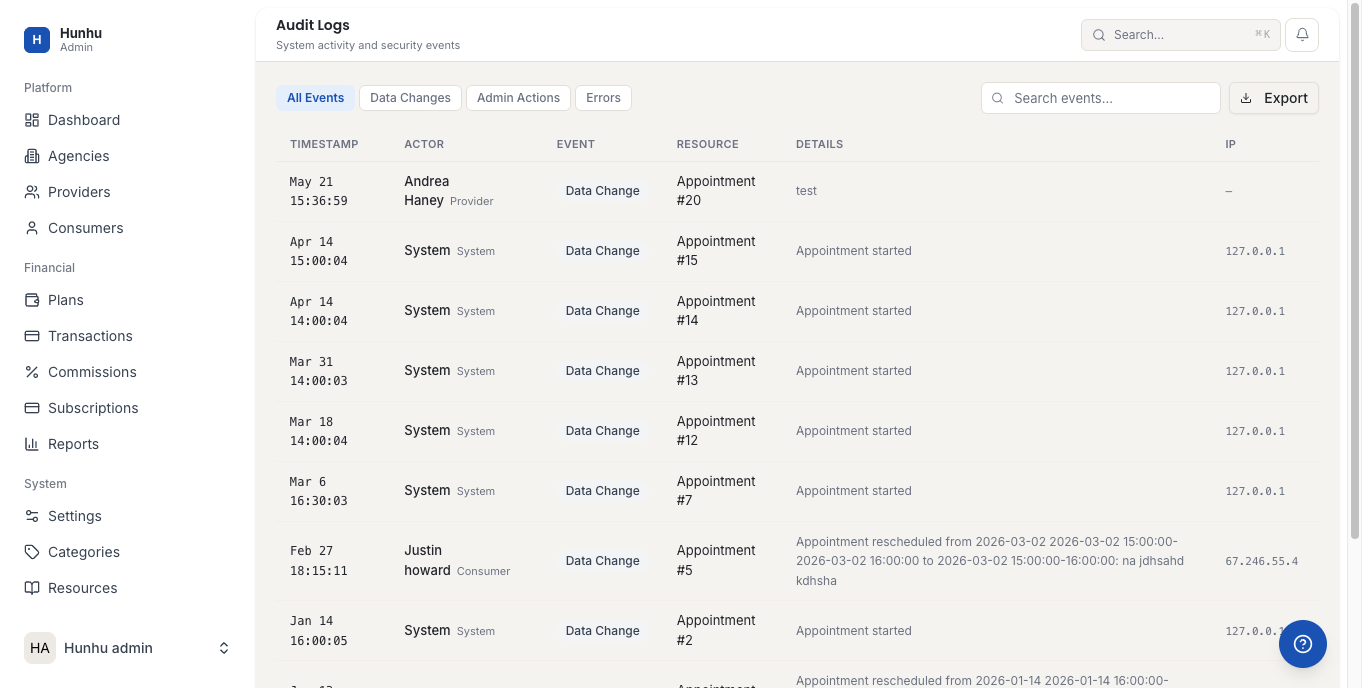
- Search or filter for impersonation events. Each log entry records:
- The admin account that initiated the impersonation
- The account that was impersonated (agency, provider, or consumer)
- The timestamp of when the session started and ended
- The Audit Log is append-only and cannot be edited. It provides a complete record of all admin access to user accounts.
Was this helpful?
Still need help?
Our support team is here for you. Send us a message and we'll get back to you within 48 hours.