Provider Messages
Messages is your inbox for ongoing conversations with active clients — people you are already working with. Unlike Enquiries (which are from prospective clients), Messages is where you communicate with clients who have booked sessions or are part of an ongoing engagement.
Accessing Messages
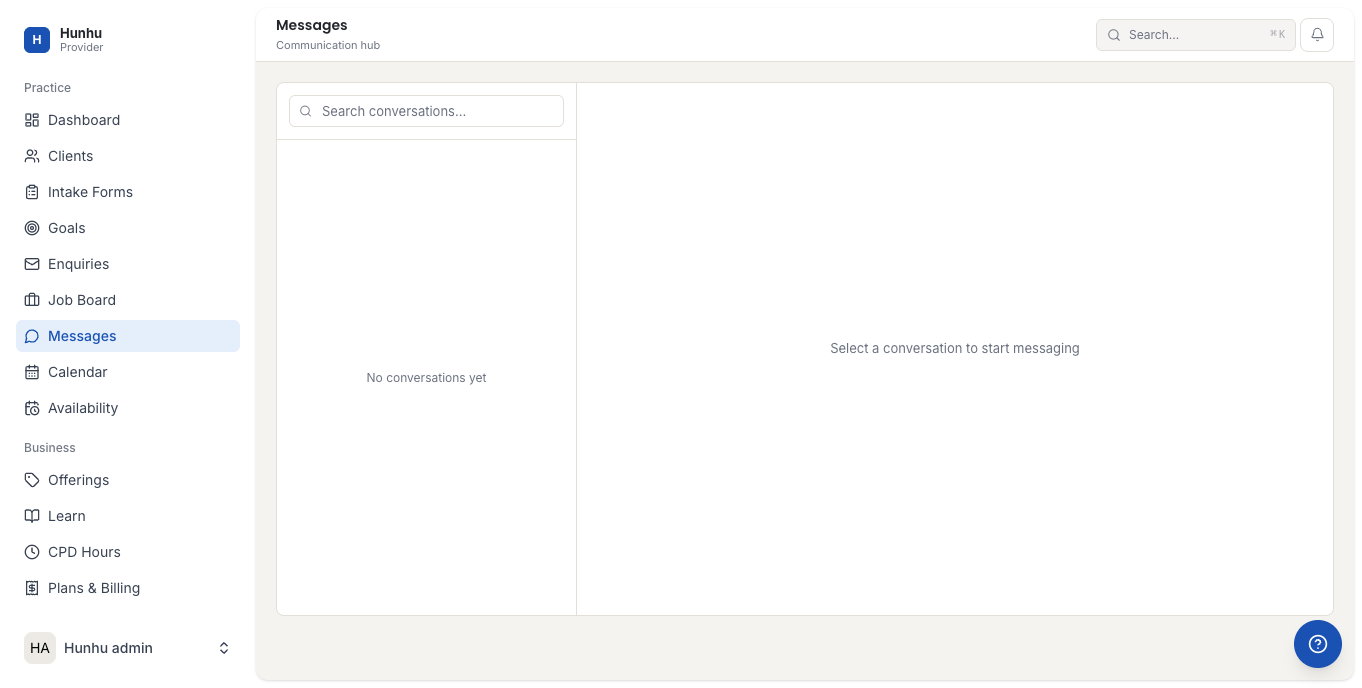
Go to Provider > Messages to see all active conversations. Conversations are listed by client, with the most recent message shown. Unread conversations are highlighted so nothing gets missed.
Sending a Message
- Click on a client conversation to open it.
- Type your message in the text field at the bottom.
- Press Send or hit Enter.
Clients receive your message by email and can reply through the consumer portal or directly from the email. Their reply appears in the same thread.
Starting a New Conversation
If you need to message a client who does not already have an open thread with you:
- Click New Message in the Messages inbox.
- Search for the client by name or email.
- Type your message and send.
Attachments and Files
You can attach files to messages — useful for sharing resources, worksheets, session summaries, or homework. Click the paperclip icon in the message composer to attach a file before sending.
Notifications
You receive an email notification when a client sends you a message. If you are active in the platform, an in-app notification also appears. Make sure your notification settings (under Settings > Notifications) are configured to alert you when new messages arrive.
Keeping Messages Professional
All messages sent through the platform are logged and accessible to your agency administrator. Keep communications professional and related to your work together. For scheduling, use the Calendar. For billing or payment questions, direct clients to the agency's support team.
Still need help?
Our support team is here for you. Send us a message and we'll get back to you within 48 hours.