Consumer Portal Overview
The Consumer Portal is where clients find providers, book sessions, manage appointments, and track their service journey. This article walks through every section available in the consumer experience.
Consumers access the portal through the agency's branded directory URL (e.g., directory.youragency.com) or via the direct Hunhu consumer URL provided by their agency. Admins can log in as any consumer from the Admin portal's consumer detail page.
Dashboard
- After logging in, consumers land on their Dashboard.
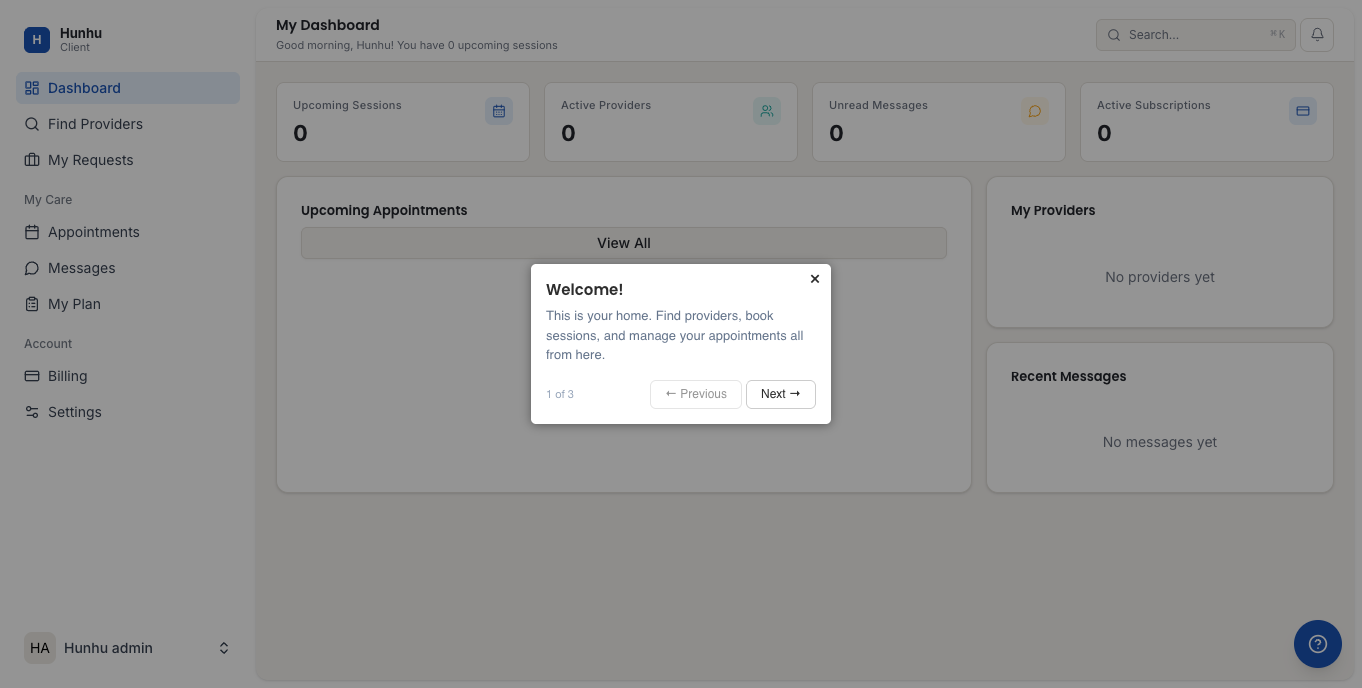
- The dashboard shows:
- Upcoming appointments with provider name, date, and session type
- Recent activity (messages, enquiries)
- Quick action buttons to find a provider or book a session
Find Providers
- Click Find Providers (or Search) in the navigation.
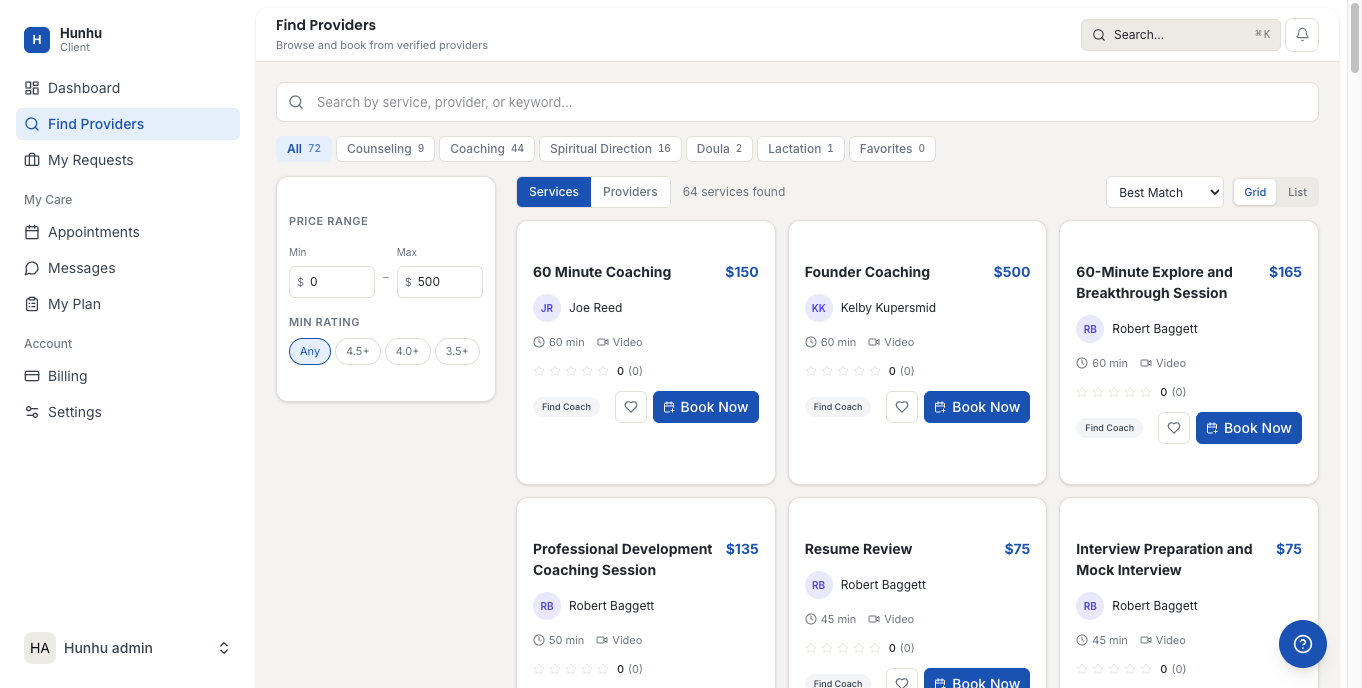
- The search page shows the agency's full provider directory.
- Use the search bar to find providers by name, specialty, or keyword.
- Use filters to narrow by:
- Specialty or service type
- Session format (virtual, in-person)
- Availability (days and times)
- Price range
- Browse provider cards showing their name, photo, specialty tags, and session rates.
- Click any provider card to view their full profile with bio, credentials, offerings, and available times.
- See the Finding and Booking a Provider article for step-by-step booking instructions.
Appointments
- Click Appointments in the navigation.
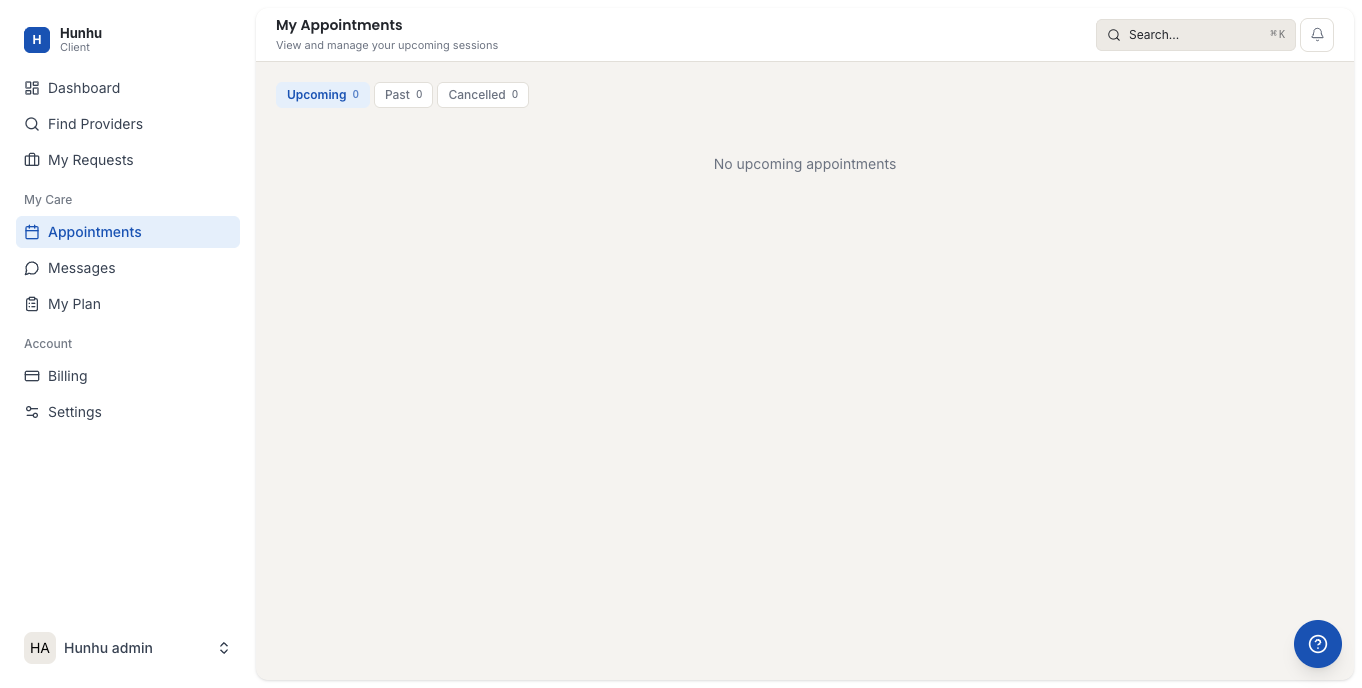
- View all upcoming and past appointments in list or calendar format.
- For each upcoming appointment you can:
- View the details (provider, date, time, session type, Zoom link if virtual)
- Reschedule the appointment (subject to the provider's cancellation policy)
- Cancel the appointment
- Past appointments show session history and any notes shared by the provider.
Messages
- Click Messages in the navigation.
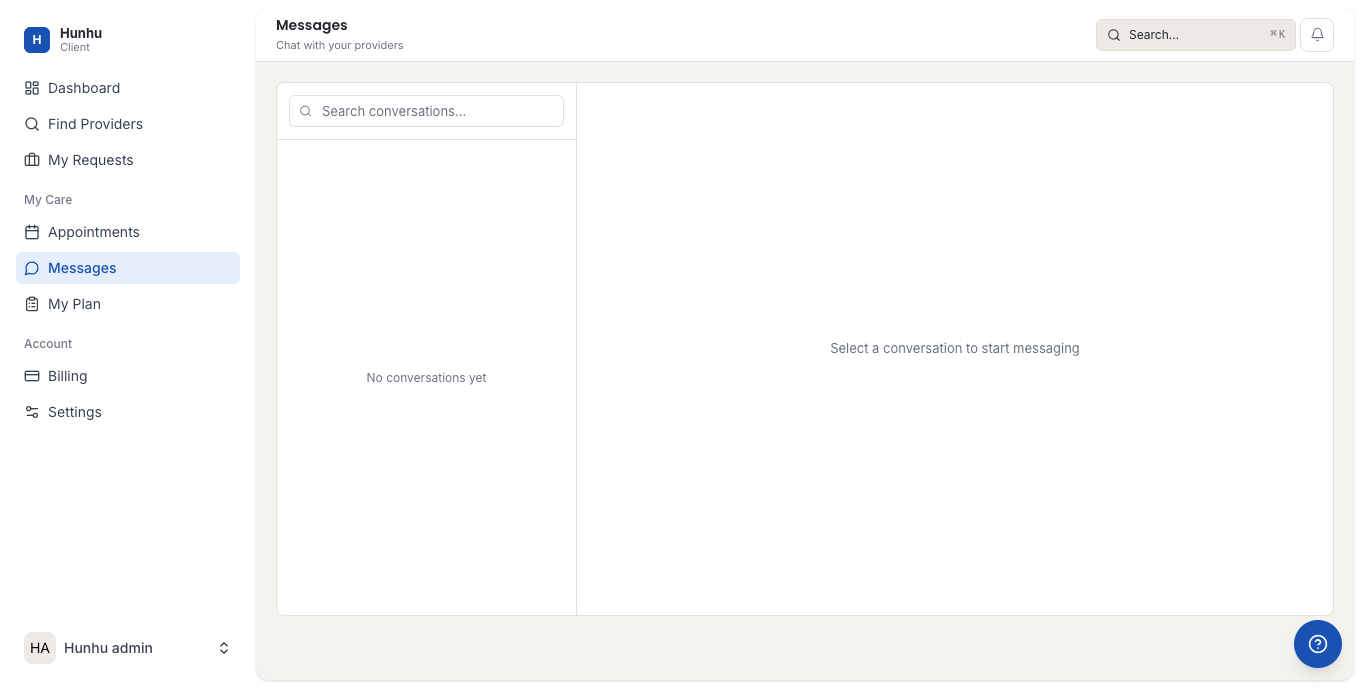
- The messaging inbox shows all conversations with providers.
- Click any conversation to view the message thread and reply.
- Click New Message to start a conversation with a provider you have previously worked with.
My Plan
- Click My Plan in the navigation.
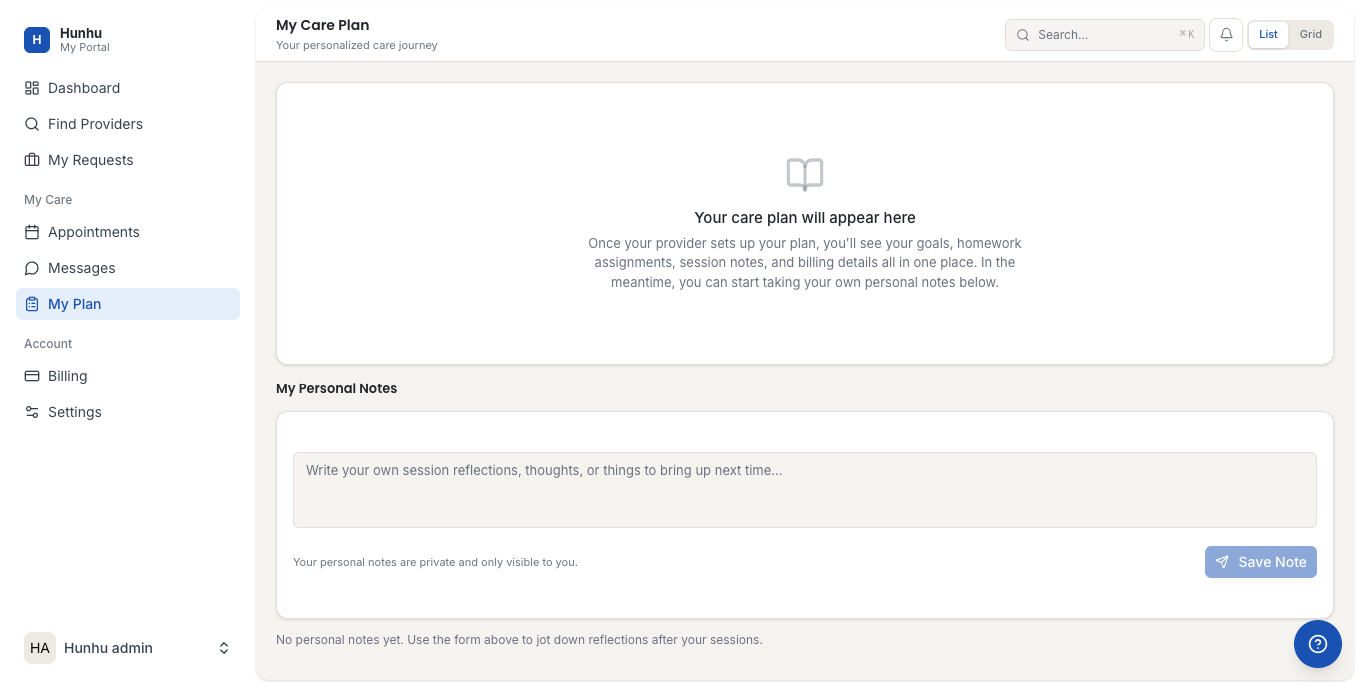
- View your current subscription or session package, including:
- Plan name and included session credits
- Sessions used and sessions remaining
- Plan renewal date
- Upgrade to a plan that includes more sessions or different session types if needed.
Billing
- Click Billing in the navigation.
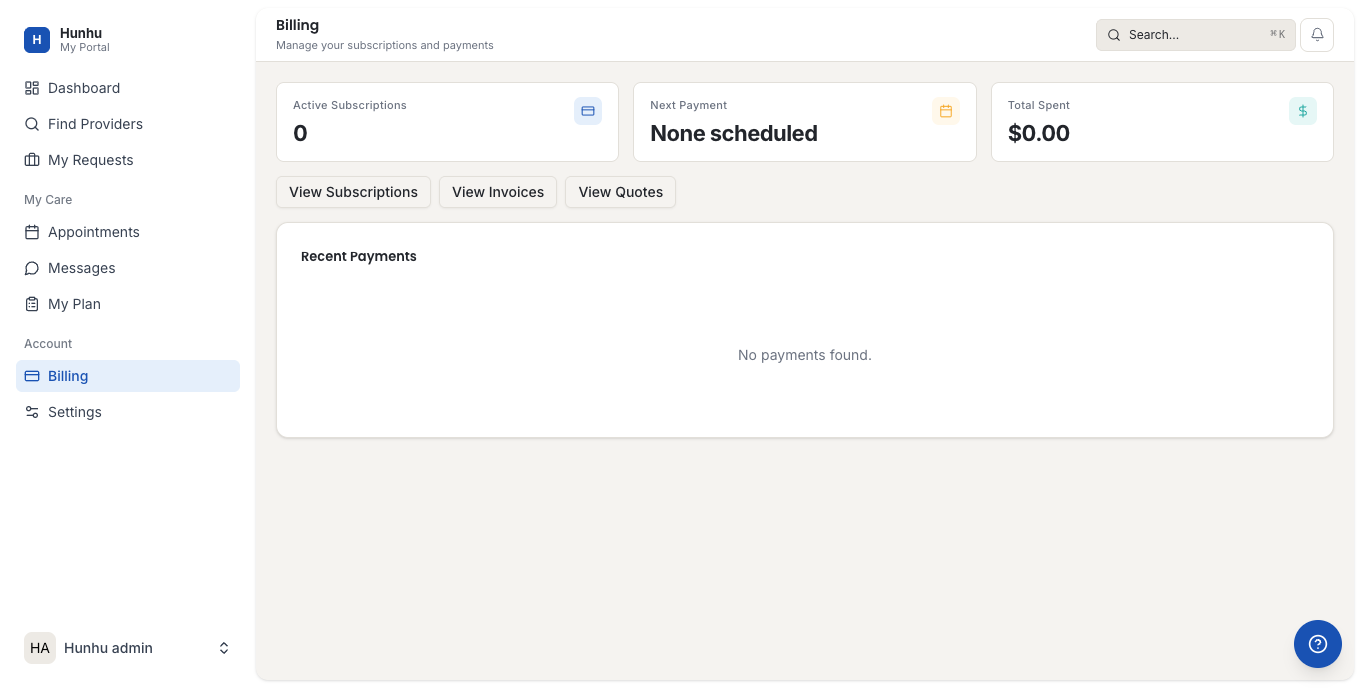
- View your payment history and download invoices for all sessions and subscription charges.
- Update your payment method by clicking Update Card.
- Cancel your subscription if applicable.
Profile Settings
- Click your name or avatar in the top navigation and select Settings, or navigate to /settings/profile.
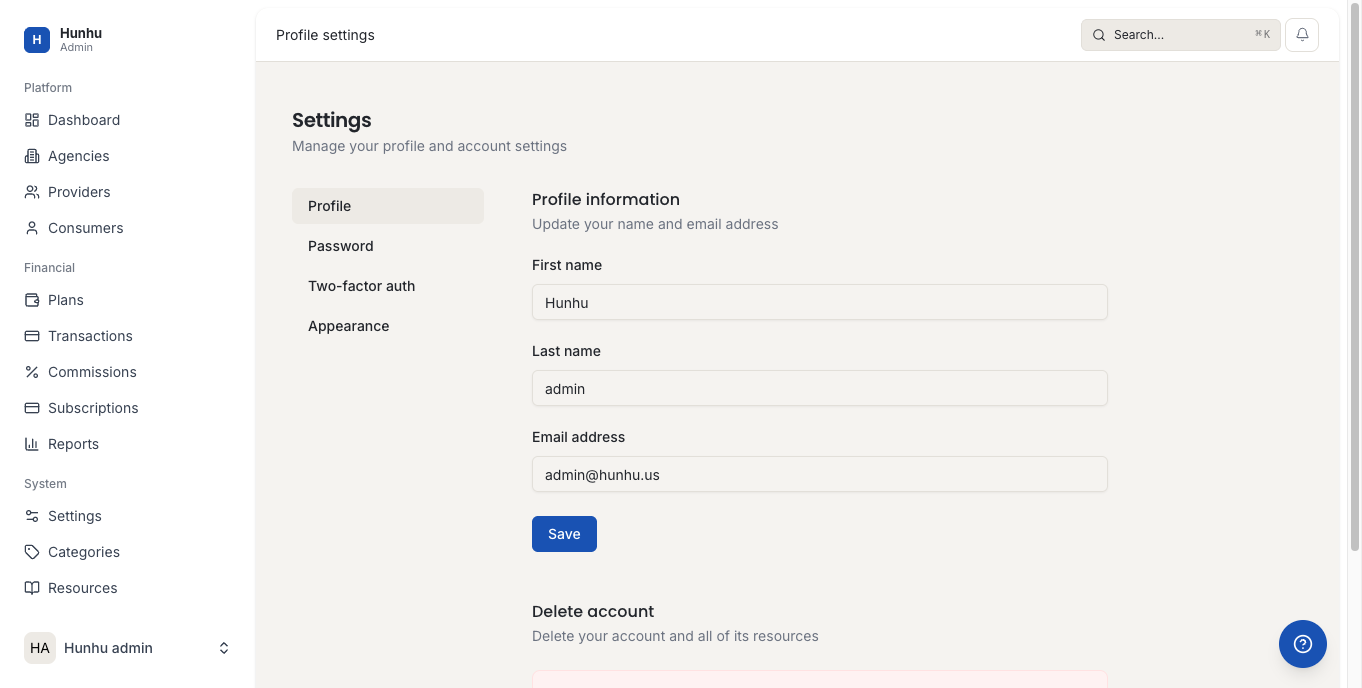
- Update your personal details:
- First and last name
- Email address
- Phone number
- Profile photo
- Timezone
- Update your password by clicking Change Password and following the prompts.
- Manage notification preferences for appointment reminders and messages.
- Click Save after making any changes.
Was this helpful?
Still need help?
Our support team is here for you. Send us a message and we'll get back to you within 48 hours.